

GoFully: redesigning a screenshot extension around one promise, nothing leaves your device.
GoFully already did a lot: full-page capture, text reading, markup, redaction and PDF export, all offline. The old extension and website said all of it at once. I redesigned the brand, the extension and the website so the tool is calm to pick up and private by default.
- Role
- Product Designer, End-to-End Redesign
- Product
- Chrome Extension · 5 Browsers
- Scope
- Brand, Design System, Extension UI, Website
- Status
- Redesign Designed · New Site in Development
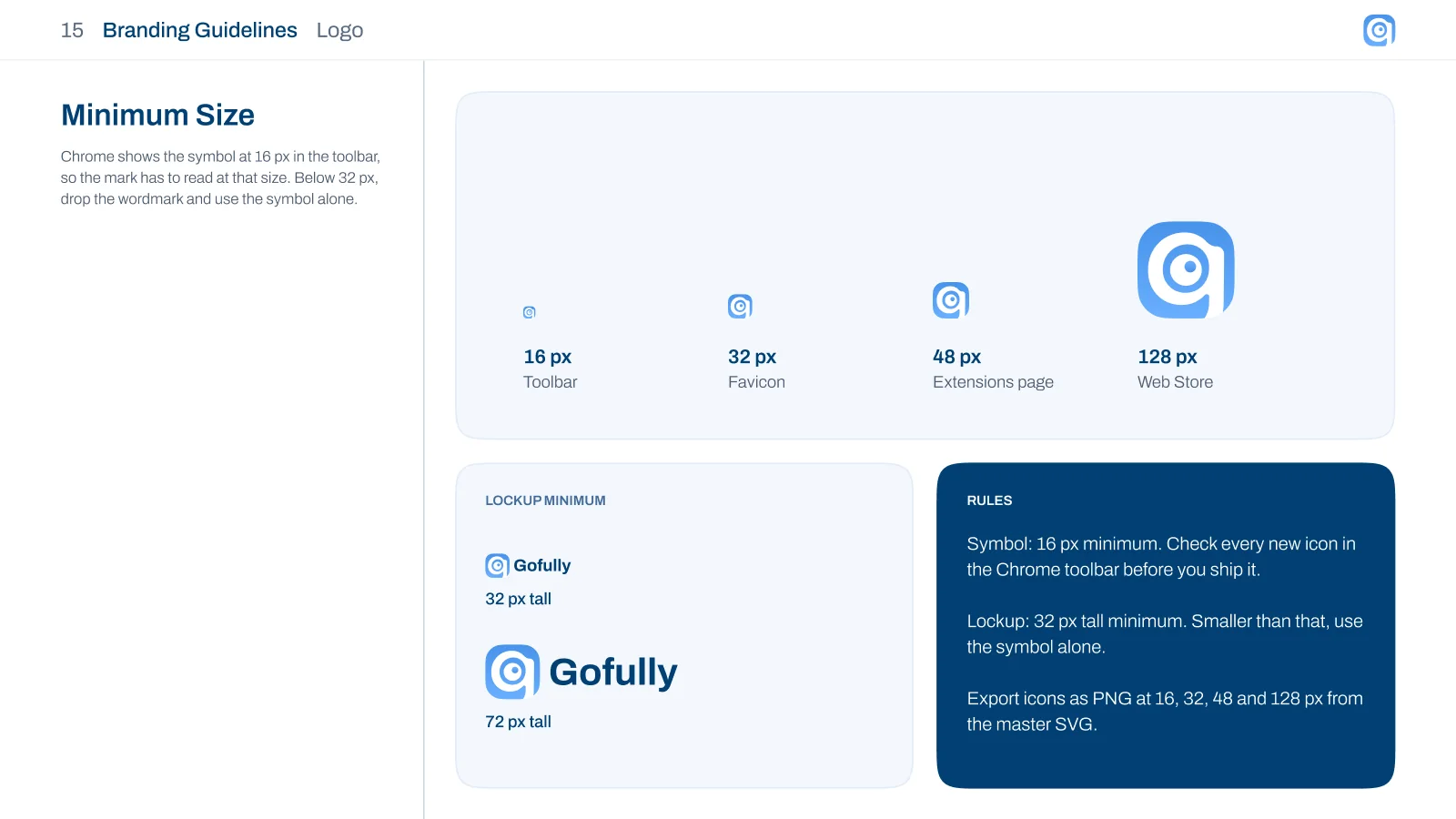
From positioning and voice to the app icon at 16 px, written so design and code read from one source.
Popup, on-page overlays, editor, settings and guides, each state designed in light and dark.
One primary action per screen, in navy. Everything else stays quiet.
01Overview · What is GoFully
A capable tool that looked like every other screenshot extension
GoFully is a Chrome extension for full-page screenshots. It scrolls a page, waits for lazy images, handles sticky headers and stitches one clean image. It reads text out of any capture in six languages, marks up and redacts, beautifies captures for posts and slides, and exports PNG, JPG, WebP or PDF.
Everything runs inside the browser. There is no account and no server. Capture, editing, text reading and redaction all happen on the device, which is rare for this category of tool.
The redesign brief was to keep every feature and change how it feels. The product had grown feature by feature, and the extension, the store listing and the website showed it. The goal was one calm, consistent product whose strongest idea, privacy, comes first.
- Category
- Productivity · Chrome Extension
- Role
- Product Designer
- Scope
- Brand, Design System, Extension UI, Website
- Users
- Developers, QA Testers, Writers, Researchers, Privacy Teams
- Works in
- Chrome, Edge, Brave, Arc, Opera
02The problem · The old GoFully
Every feature, all at once, on every surface
The extension worked well. What it said about itself, in the store, on the website and in its own UI, made it hard to see why.
A headline made of features
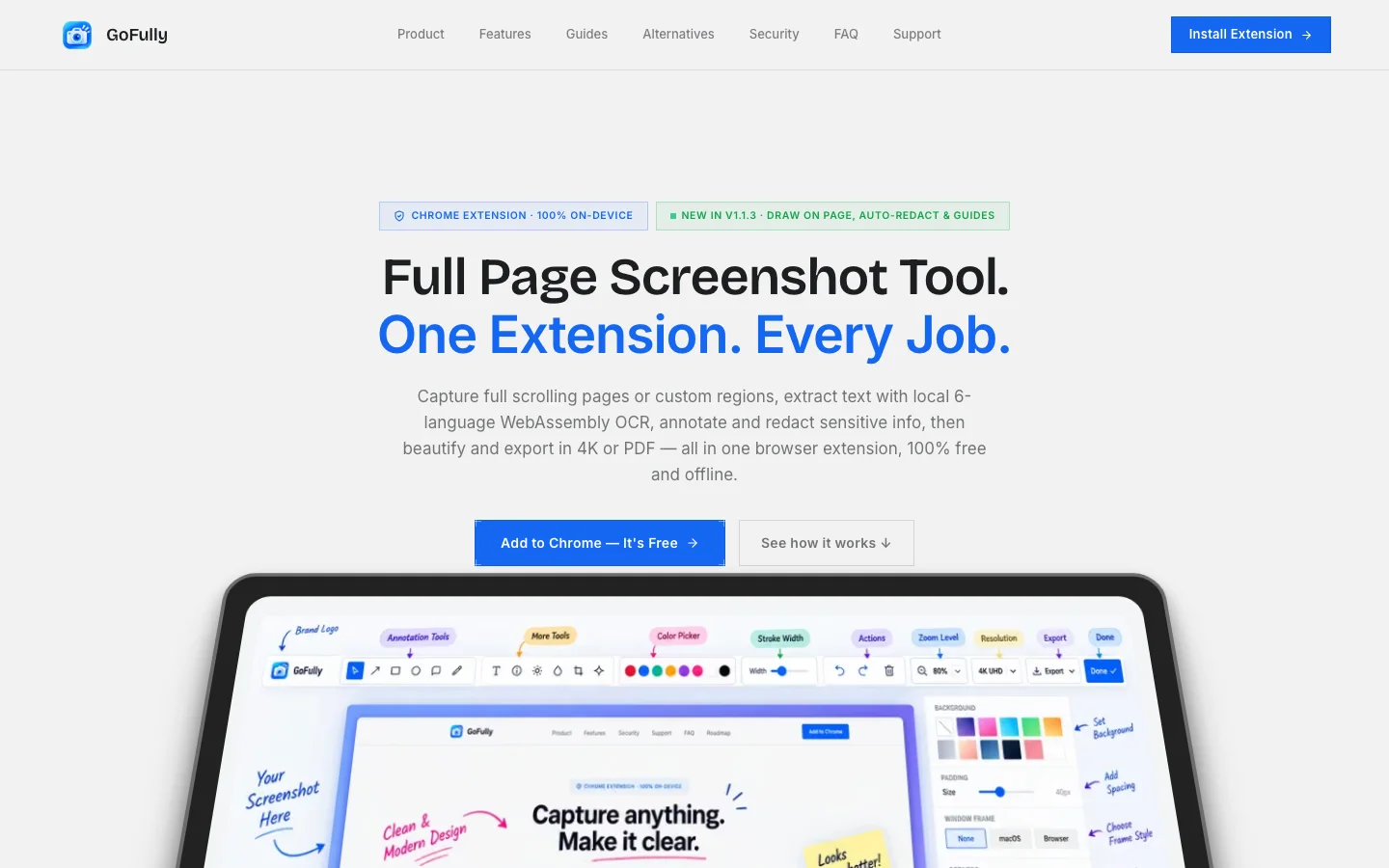
- The old hero read Full Page Screenshot Tool. One Extension. Every Job.
- The paragraph under it named WebAssembly OCR, 4K export and PDF in one sentence.
- The privacy promise sat in a small badge above it all.
A generic identity
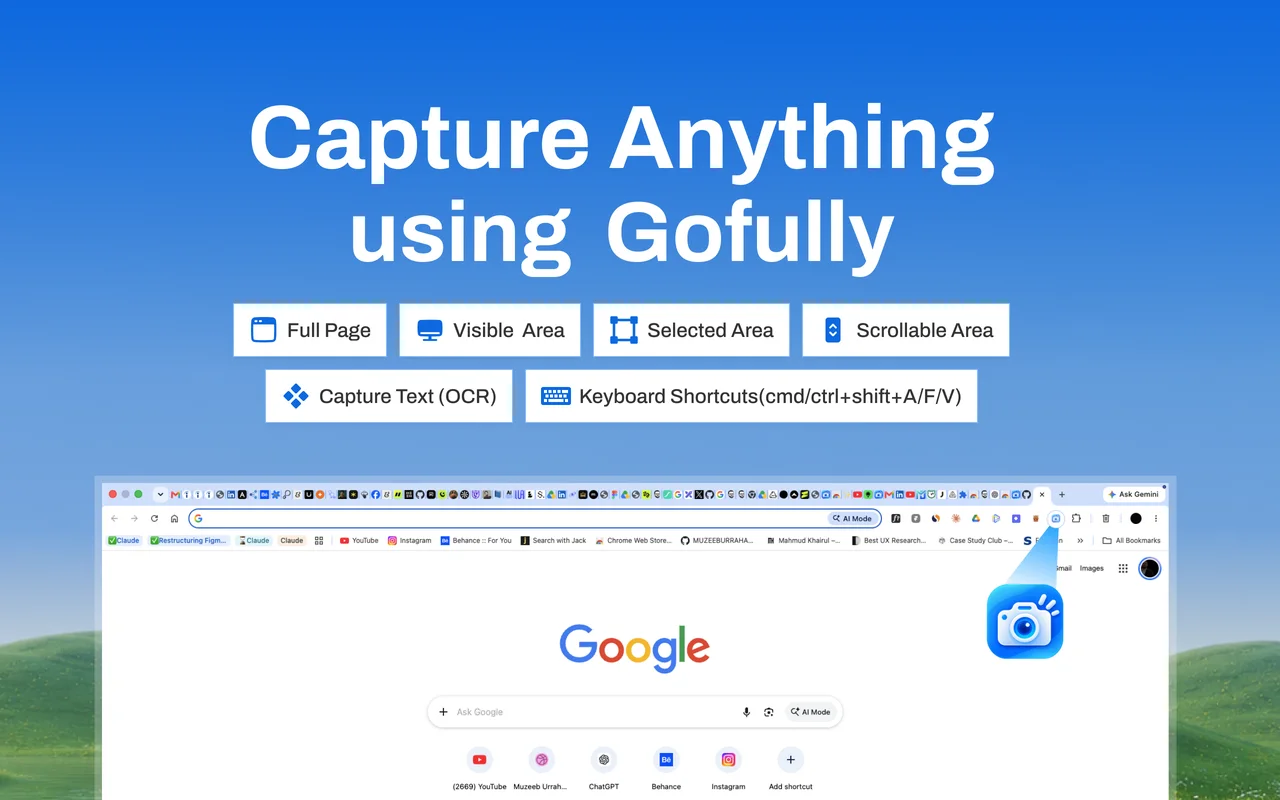
- The icon was a glossy camera with flash rays.
- In the Chrome Web Store, it sat next to other screenshot extensions using camera icons too.
- Nothing in the mark said what made GoFully different.
Busy visuals that hid the UI
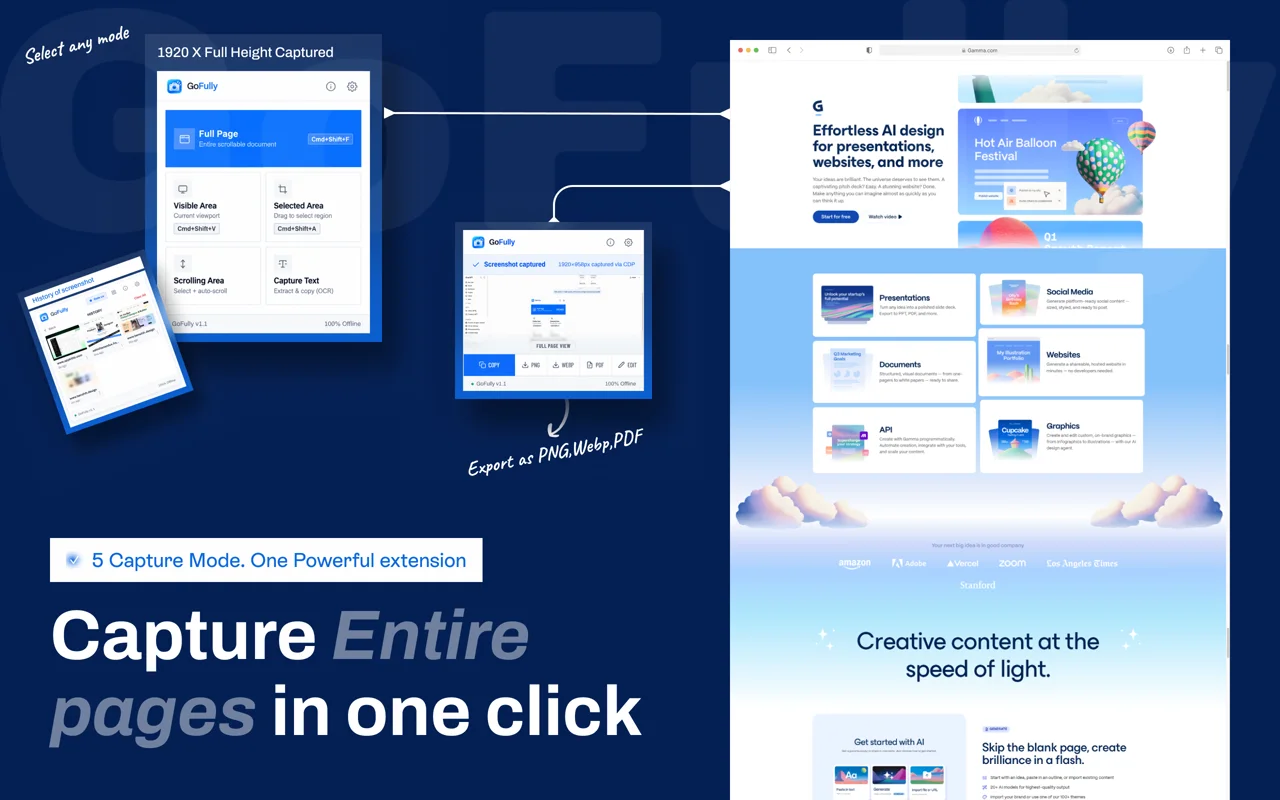
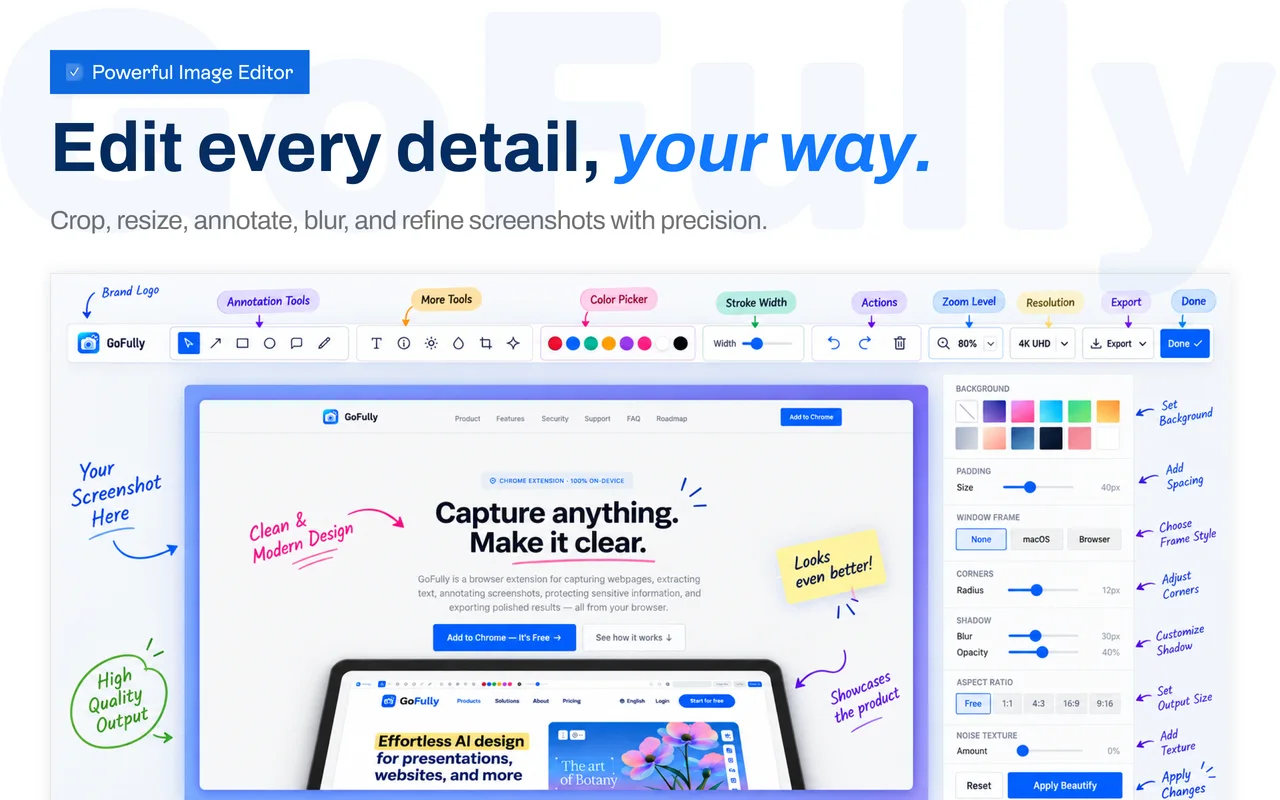
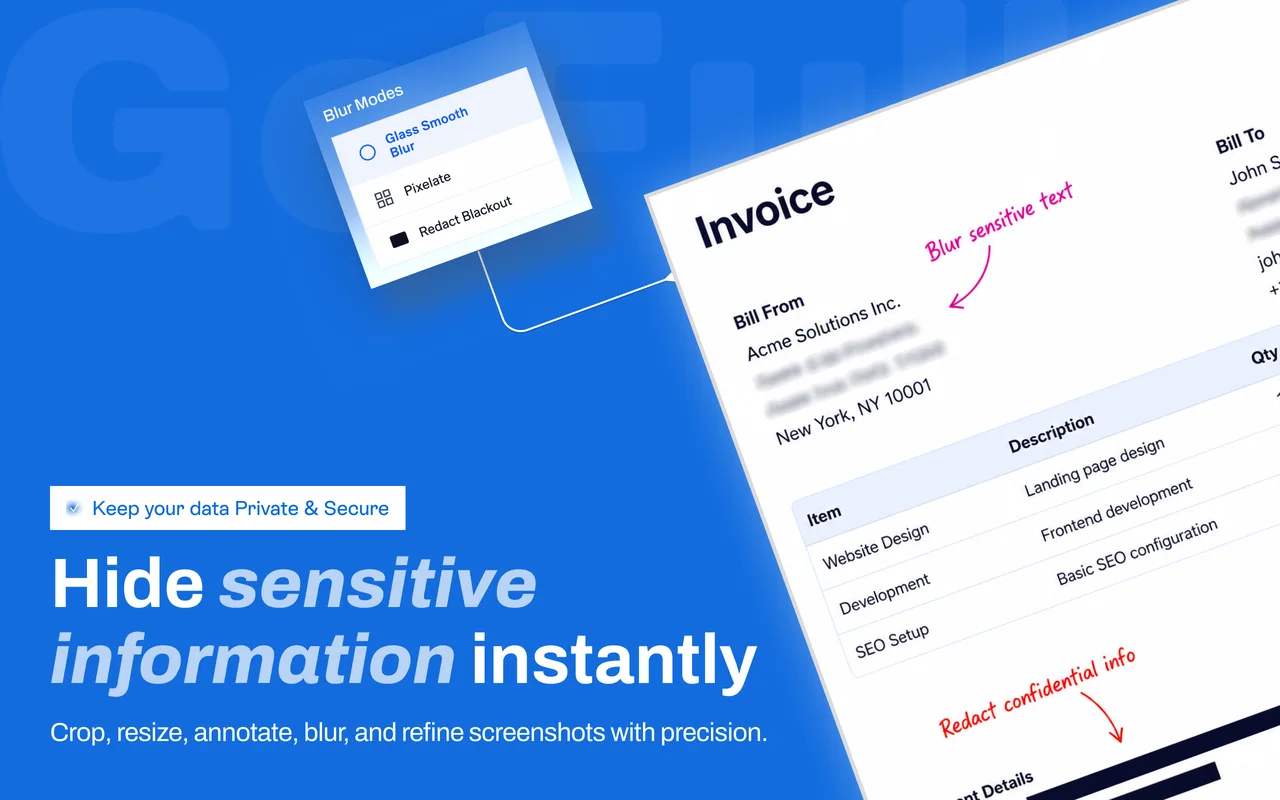
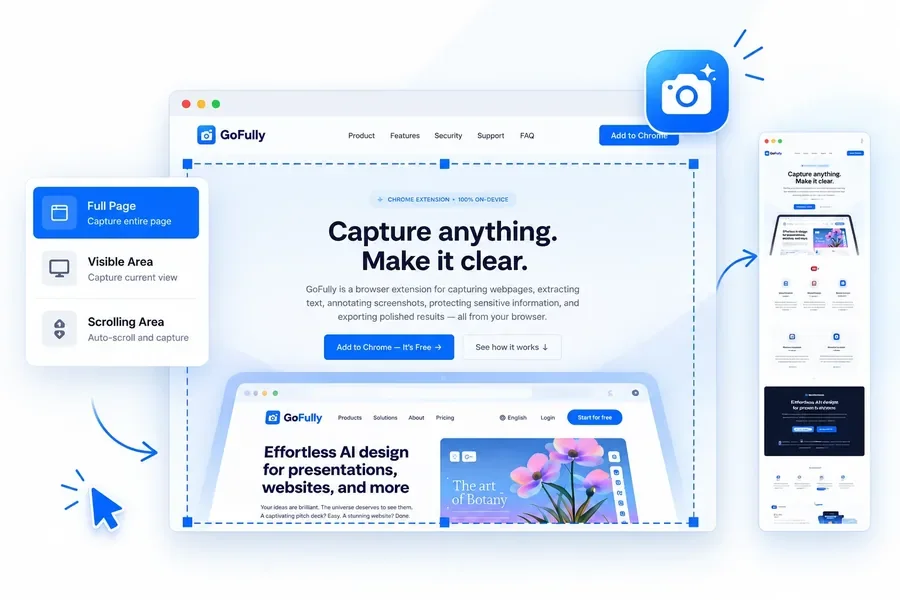
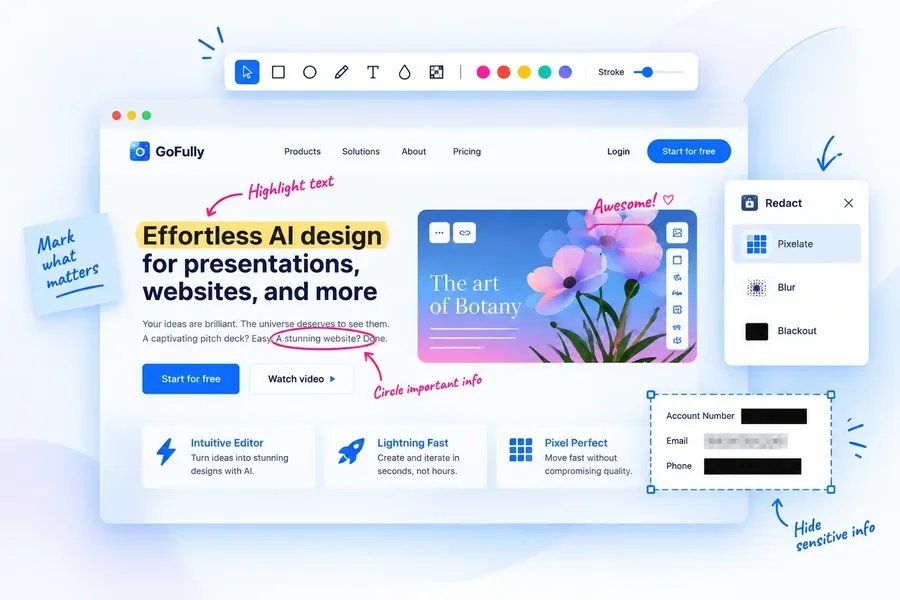
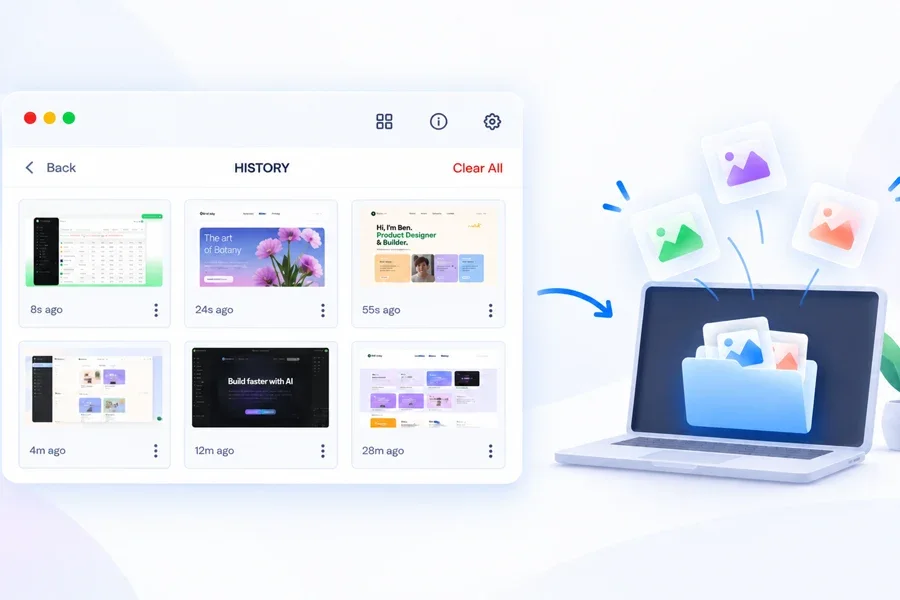
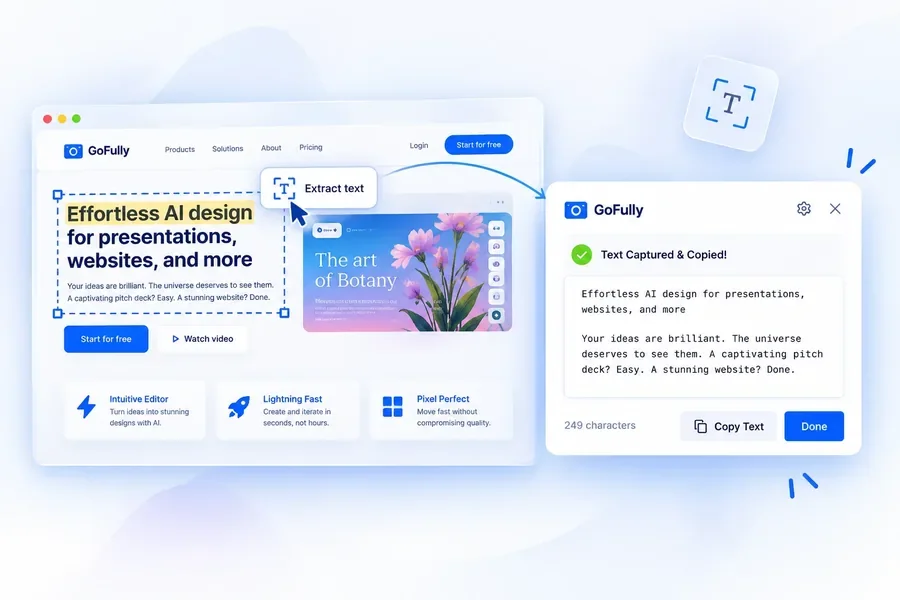
- Store screenshots and site mockups layered gradients, tilted devices, arrows and handwritten callouts.
- The product UI itself was small inside each picture.
- Each surface used its own style, so the extension, store and site did not read as one product.
03Direction · Positioning and values
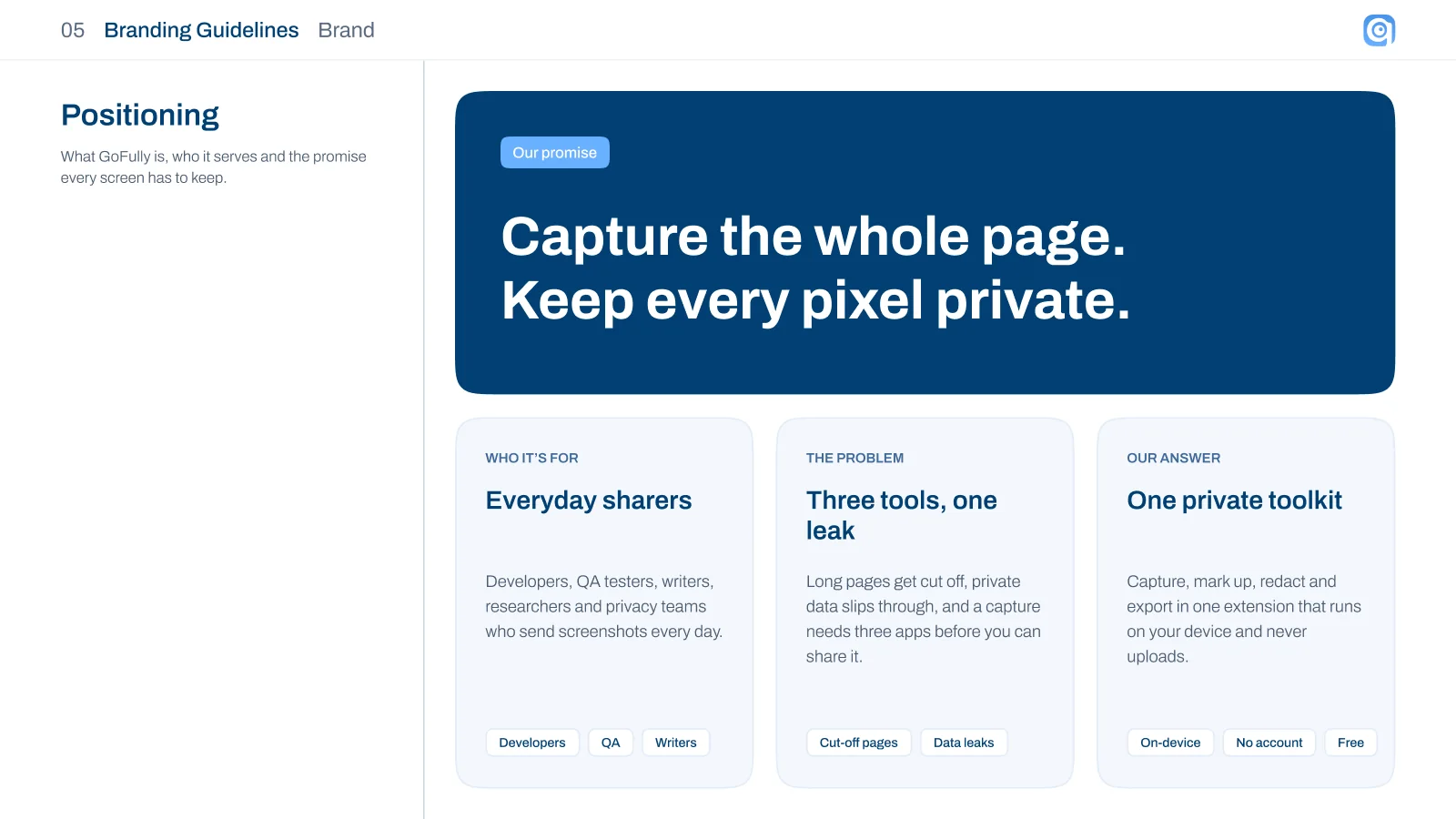
One promise for every screen: capture the whole page, keep every pixel private
Before drawing anything, I wrote down who GoFully is for and the problem it solves. The audience is everyday sharers: developers, QA testers, writers, researchers and privacy teams who send screenshots every day. The problem fits in three words from the brand guide: three tools, one leak. Long pages get cut off, private data slips through, and a capture needs three apps before it can be shared.
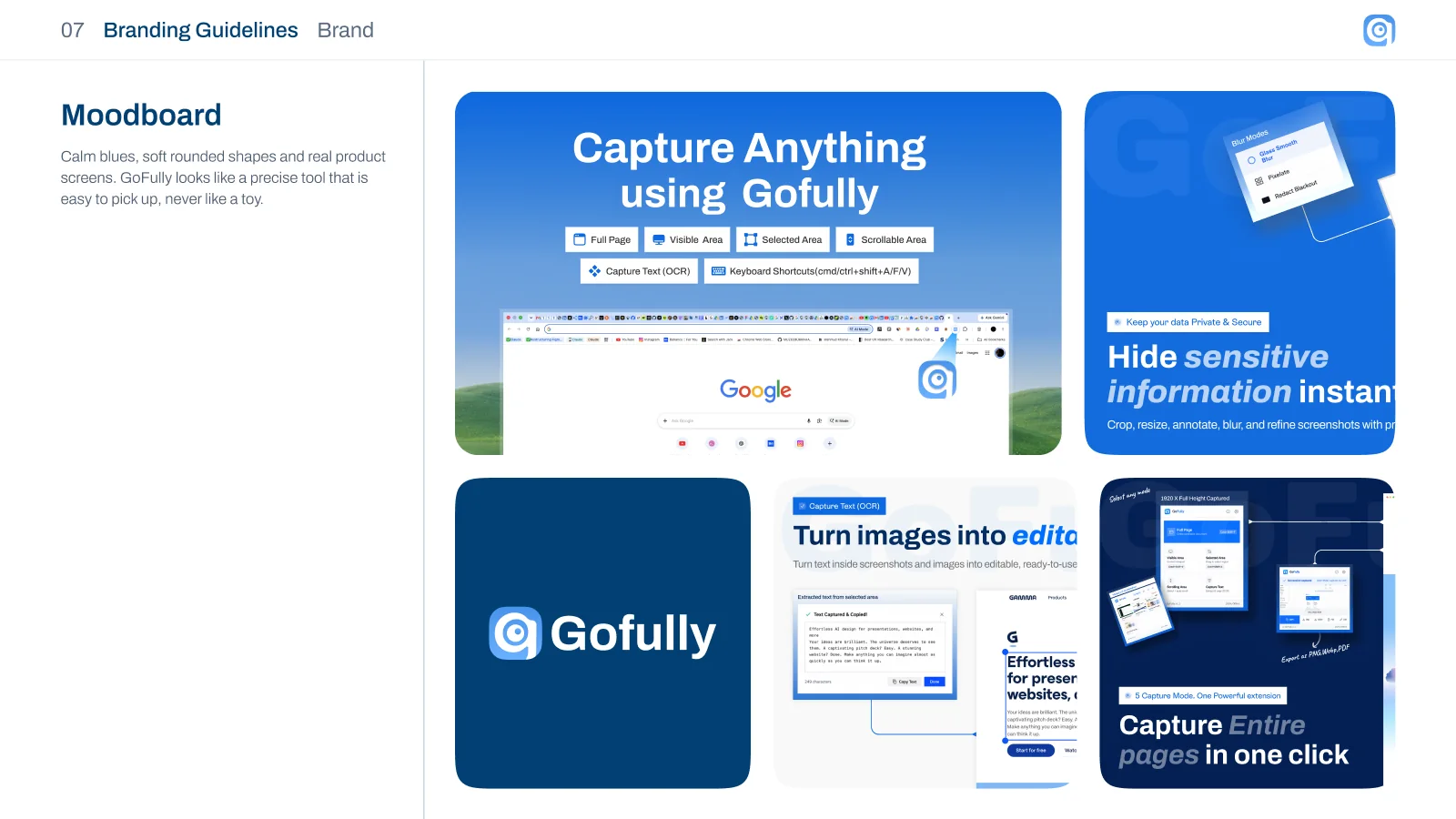
I then collected references for each surface (landing pages, extension popups and in-page UI, editors, components and store screenshots) and kept them as an internal moodboard, filtered for fit with a calm sky-and-navy direction.
Four values that settle every design and writing choice
When two options look equal, the guide says to pick the one that serves these better.
Private
Everything runs on the device. No account, no upload, no tracking.
Precise
Pixel-exact captures, checked seams and crops that keep the marks.
Fast
One click or one shortcut from page to finished file.
Friendly
Plain words, soft shapes and a clear next step on every screen.
04Brand · Mark, voice, type and colour
From a glossy camera to a viewfinder drawn as a G
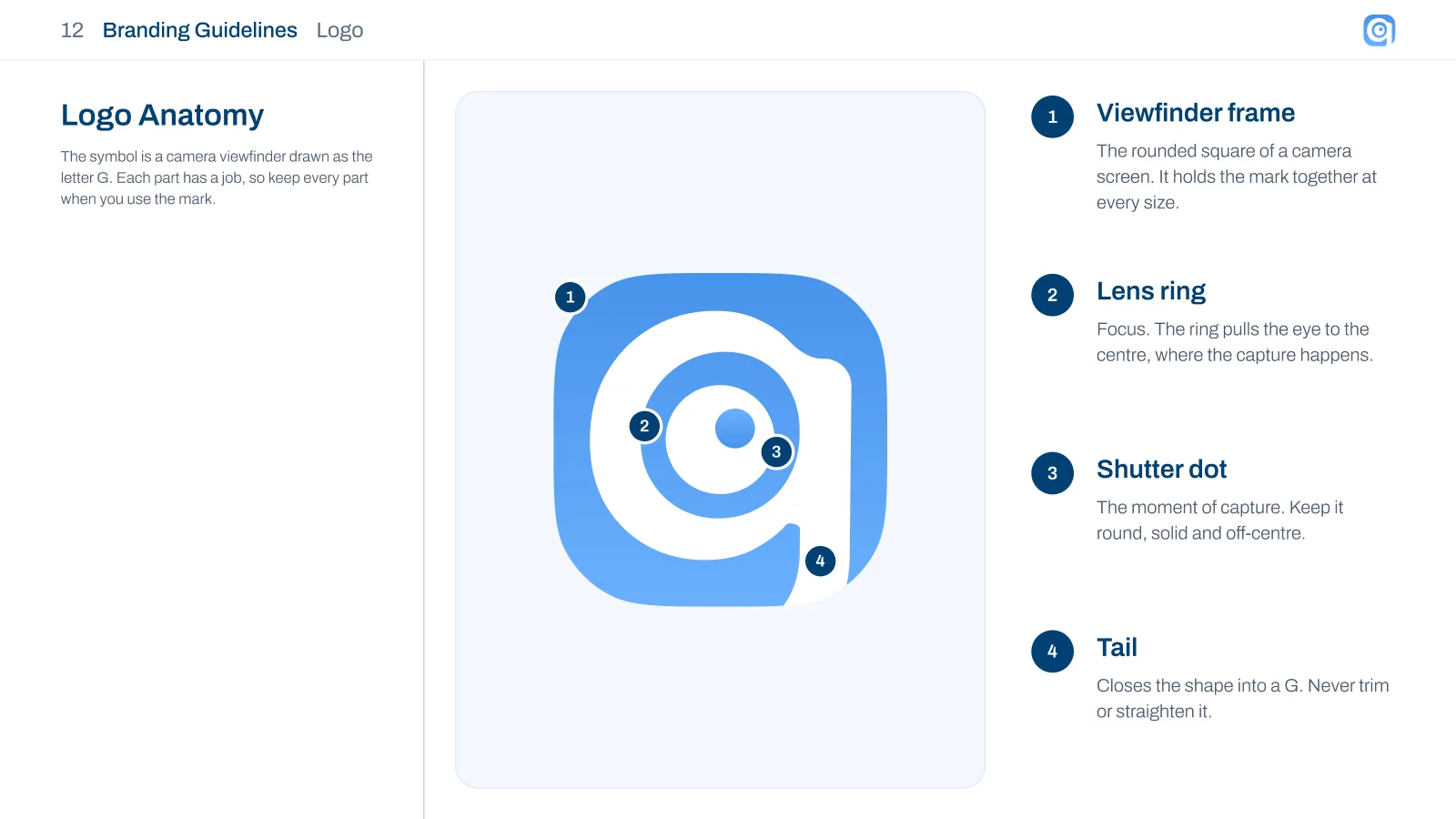
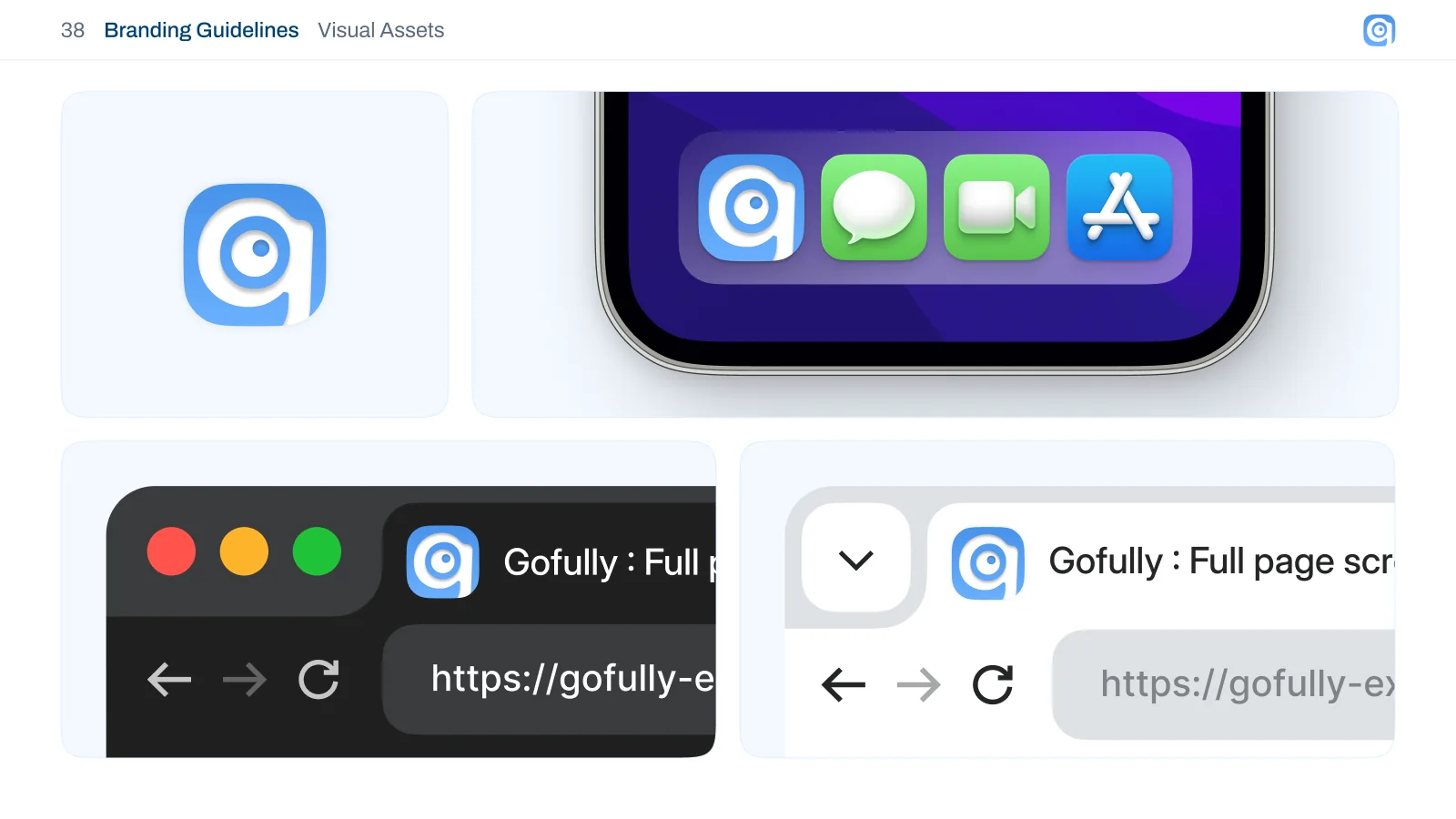
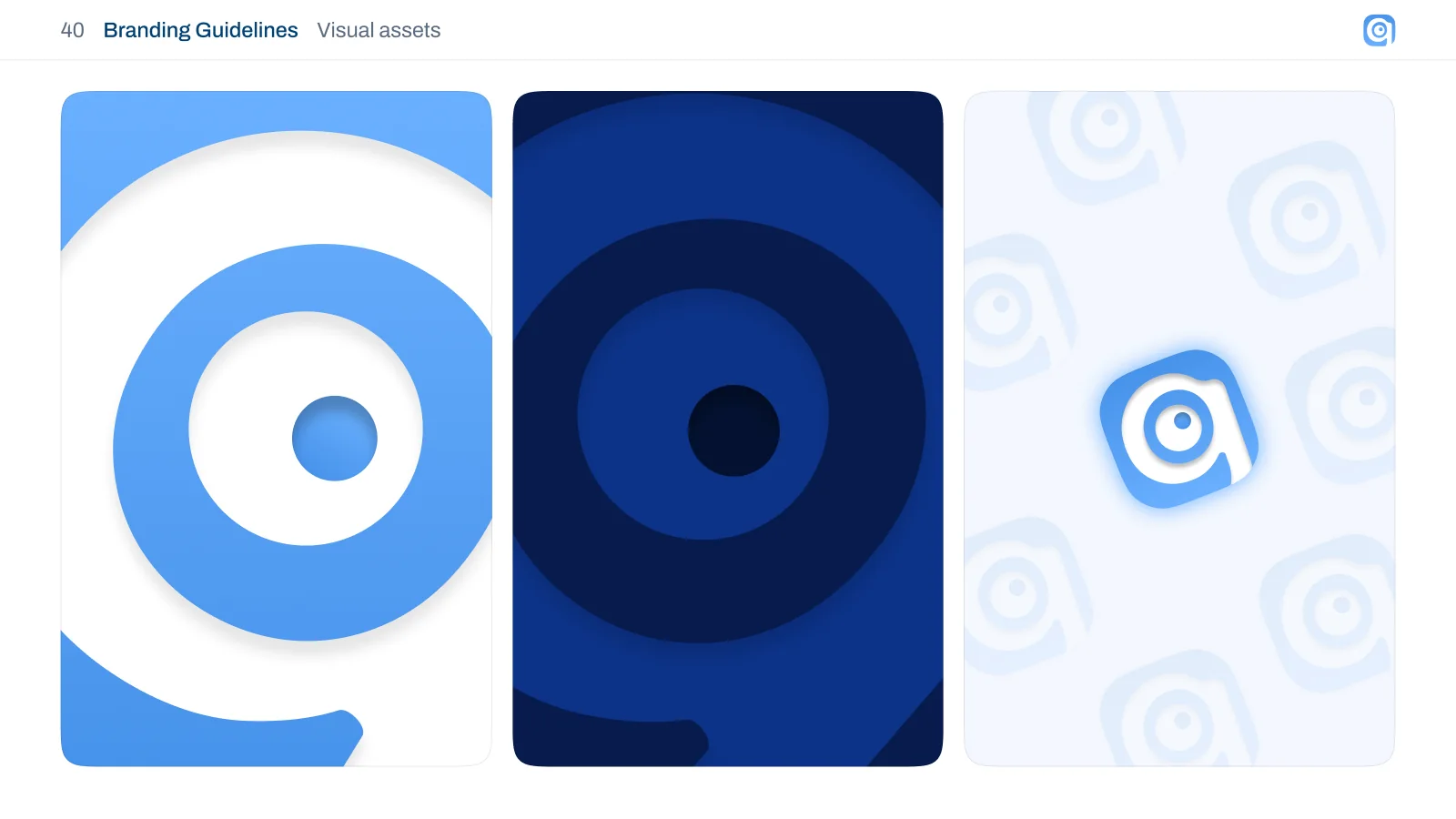
The new symbol is a camera viewfinder drawn as the letter G. It still says "screenshot", and it can only be GoFully. Each of its four parts has a job, so the guide asks to keep every part whenever the mark is used.
 Before
 After
After Navy
NavyFour parts, each with a job
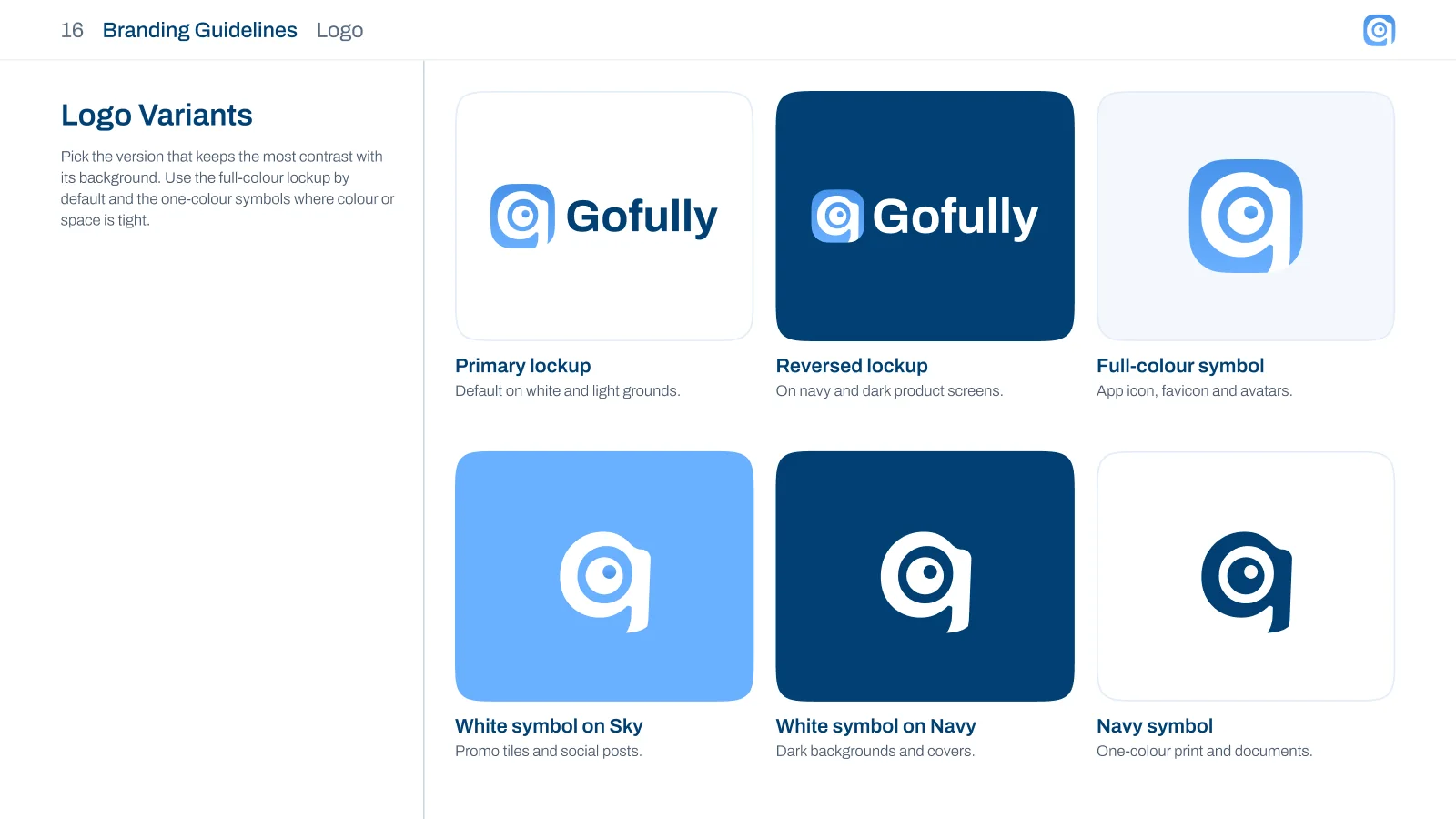
A voice that says what happened, and what to do next
The voice is a calm expert: plain words, real numbers, no hype and no exclamation marks.
Colour with a tested ground for every text pair
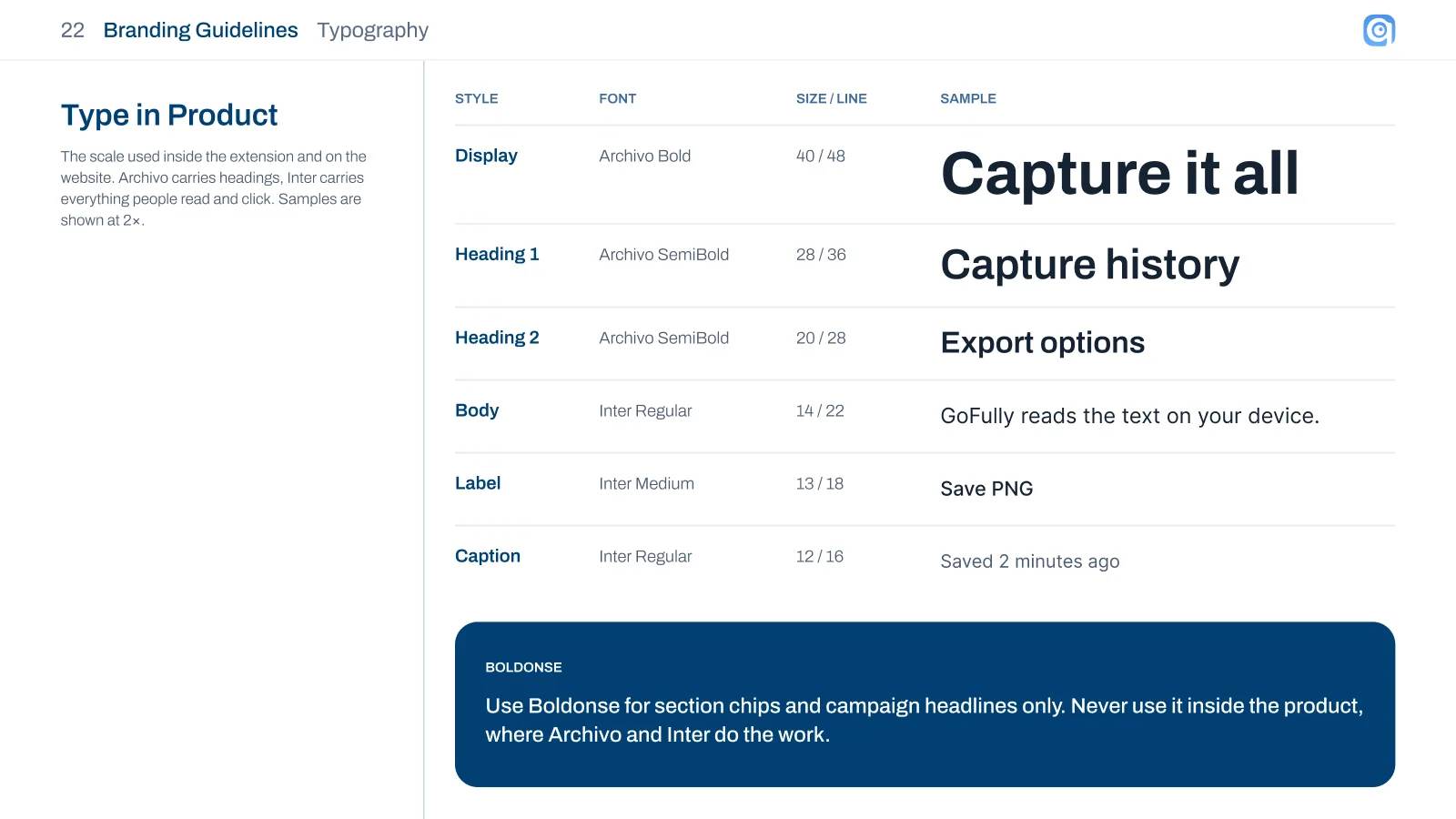
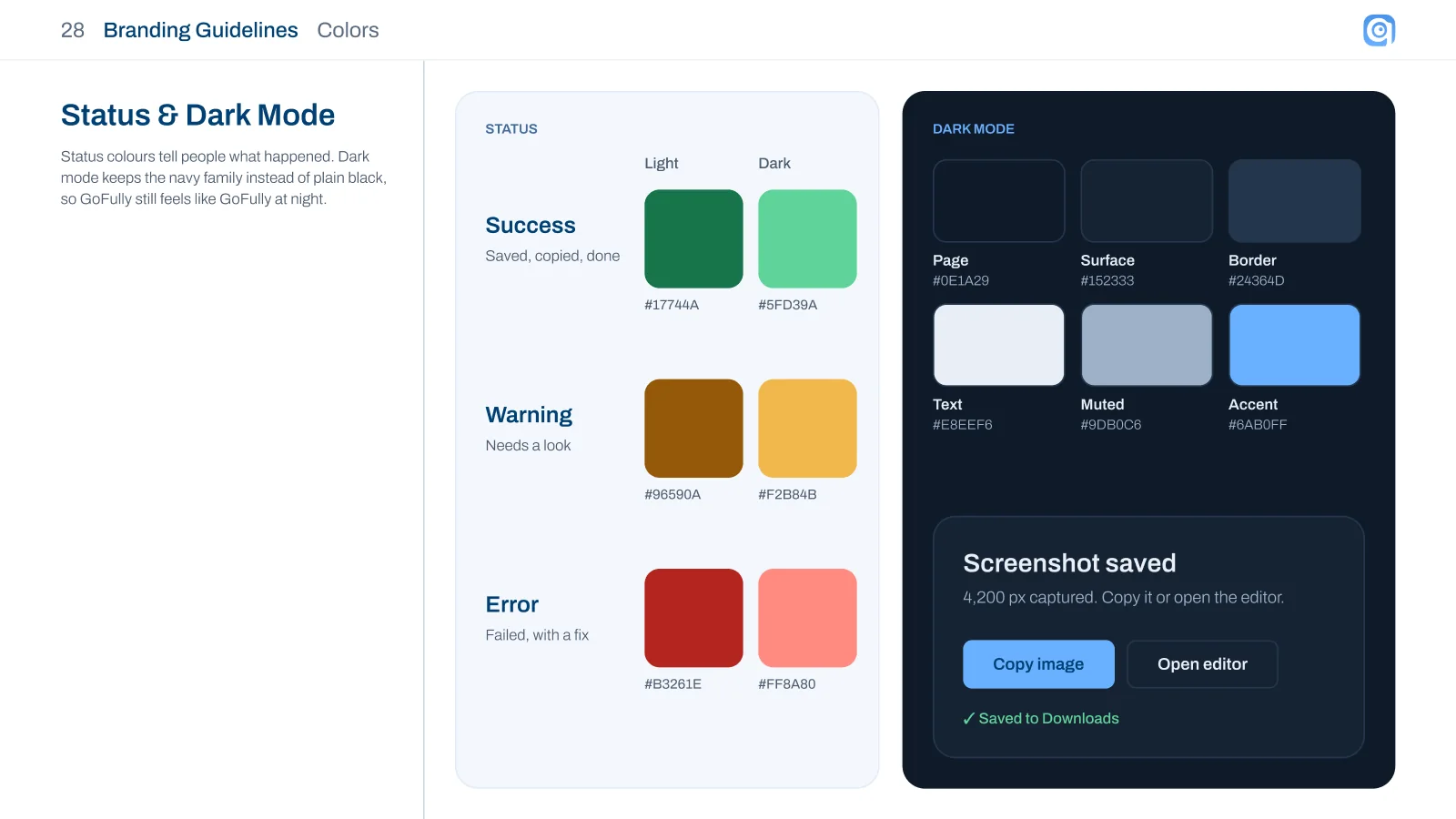
Sky Blue #6AB0FF and Deep Navy #014073 lead the palette. Archivo carries headings and Inter carries everything people read and click. Every text colour was checked against its background, which set one hard rule: Sky is a fill and an accent, never text on white. Dark mode keeps the navy family instead of plain black, so GoFully still feels like GoFully at night.
| Role | Pair | Contrast |
|---|---|---|
| Body text | Ink on White · #152333 / #FFFFFF | 15.9:1 Pass |
| Headings | Navy on White · #014073 / #FFFFFF | 10.6:1 Pass |
| Primary button | White on Navy · #FFFFFF / #014073 | 10.6:1 Pass |
| Muted text | Slate on White · #4B5C70 / #FFFFFF | 6.9:1 Pass |
| Accent on dark | Sky on Ink · #6AB0FF / #152333 | 7.0:1 Pass |
| Text on Sky fills | Navy on Sky · #014073 / #6AB0FF | 4.7:1 Pass |
| Never for text | Sky on White · #6AB0FF / #FFFFFF | 2.3:1 Fail |
05Design system · Foundations and components
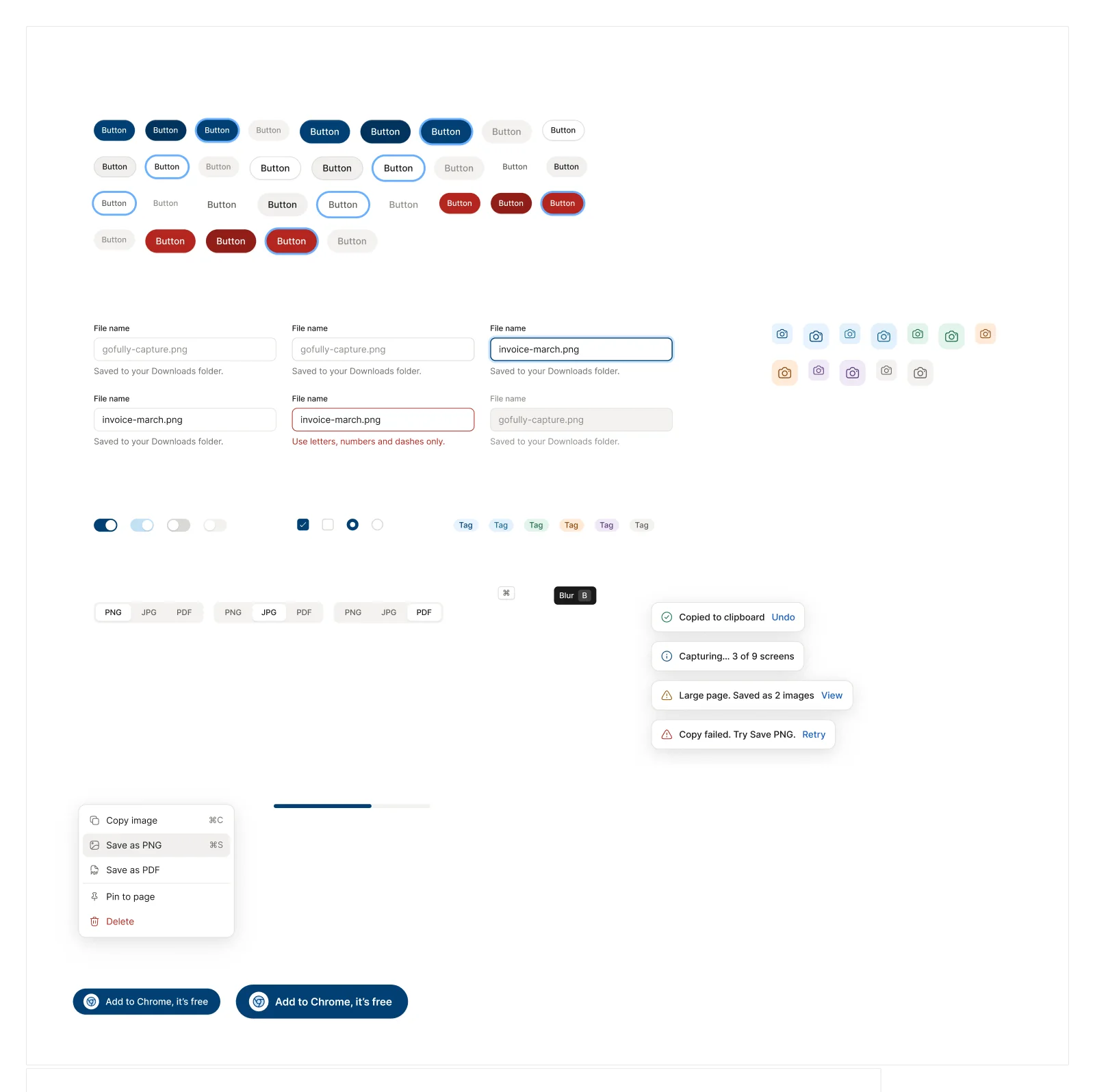
Soft corners, a 4 px grid and two quiet shadows
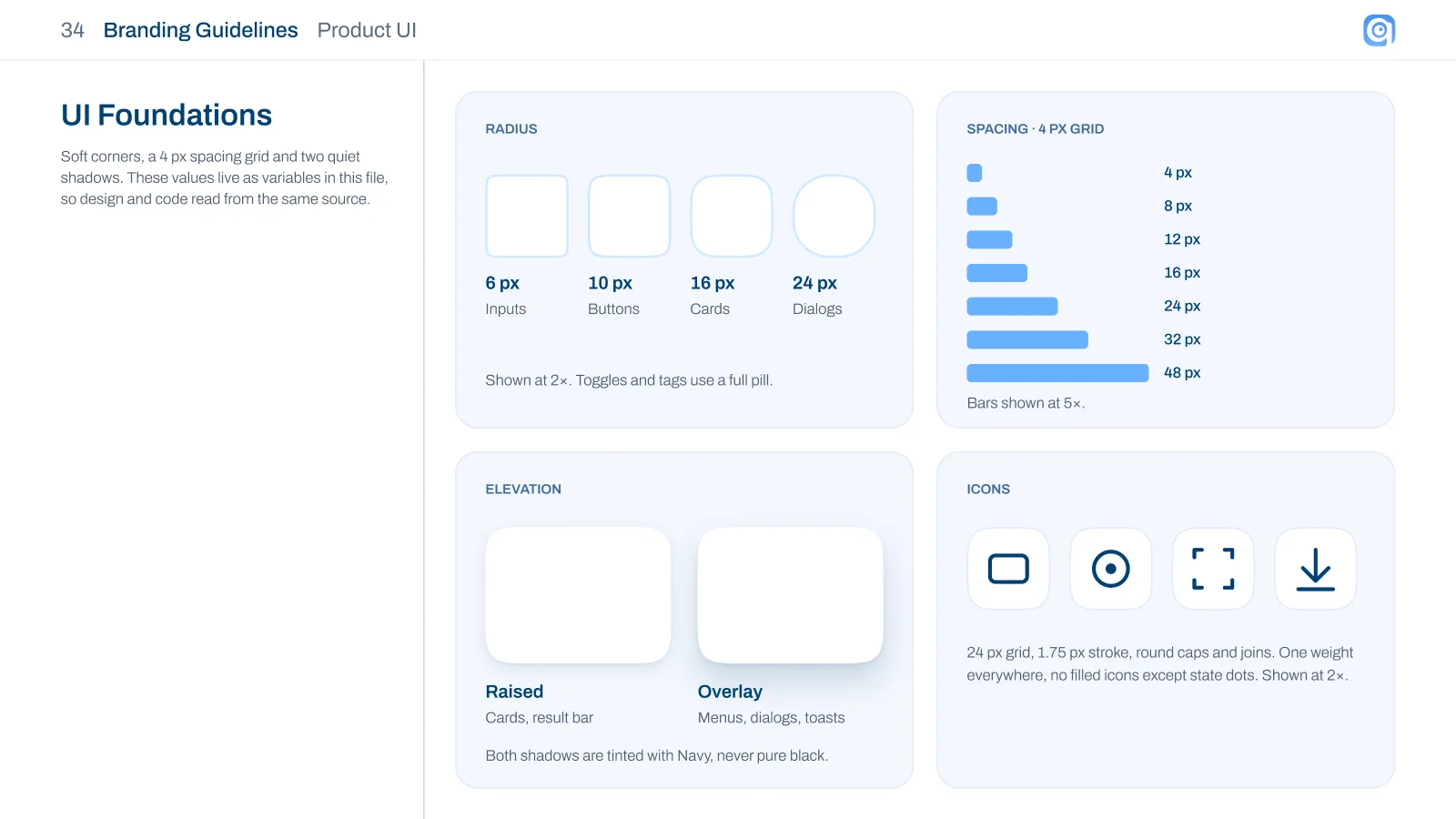
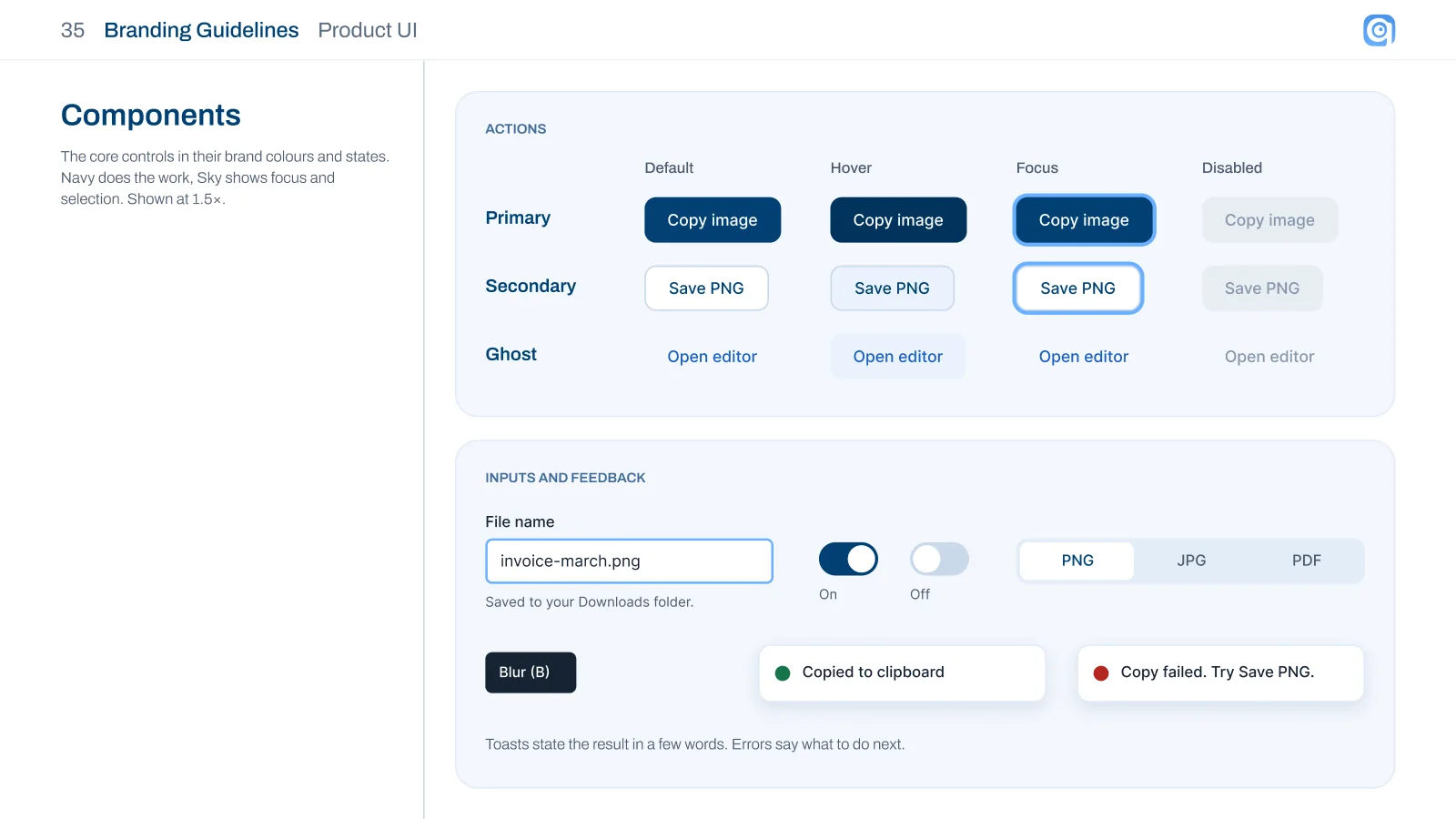
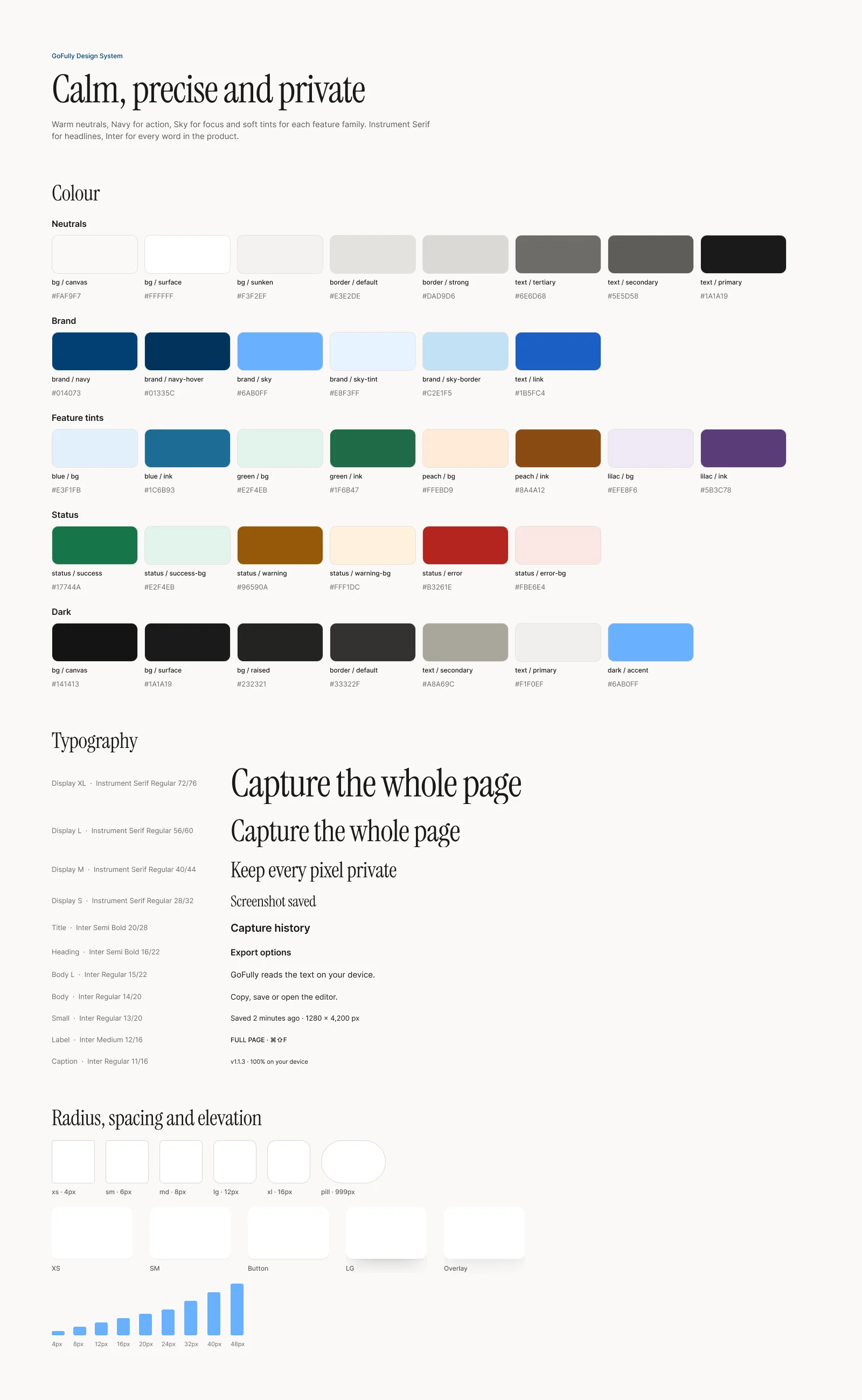
The values live as variables in the Figma file, so design and code read from the same source. Navy does the work, and Sky shows focus and selection.
Radius by role
6 px inputs, 10 px buttons, 16 px cards and 24 px dialogs. Toggles and tags use a full pill.
Two shadows, tinted navy
Raised for cards and the result bar, Overlay for menus, dialogs and toasts. Never pure black.
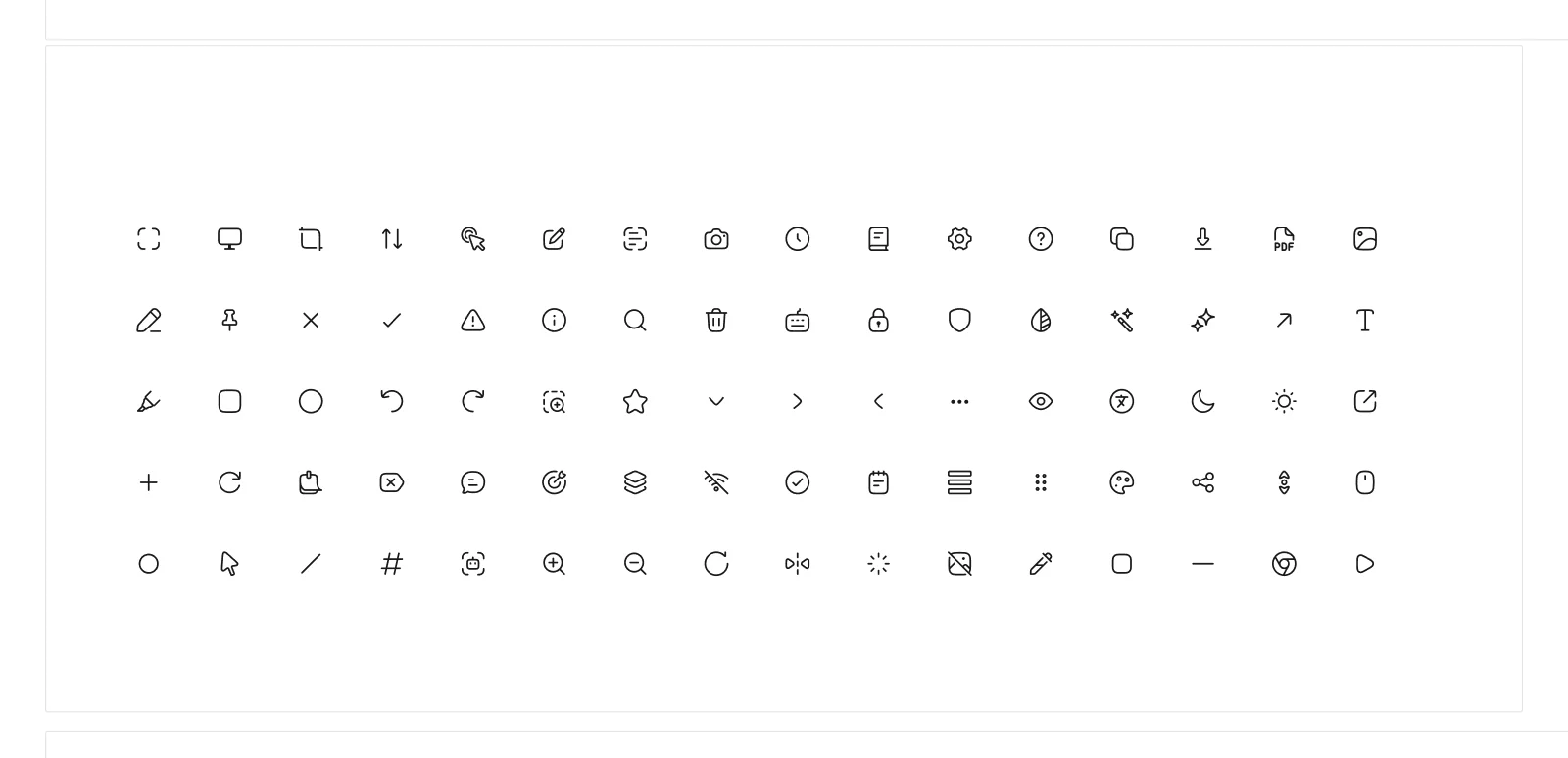
One icon weight
A 24 px grid, 1.75 px stroke, round caps and joins. No filled icons except state dots.
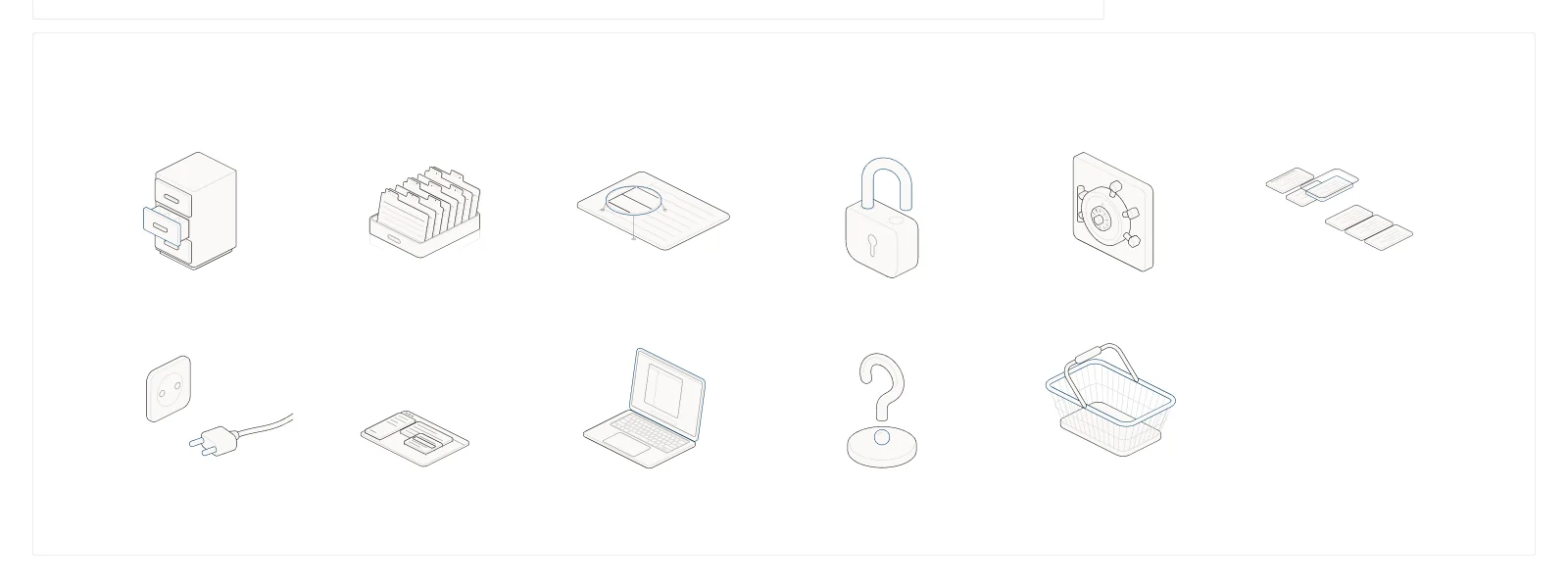
Shapes from the symbol
Rings, viewfinder corners and a label chip, used one at a time, never all three together.
06Extension · The popup
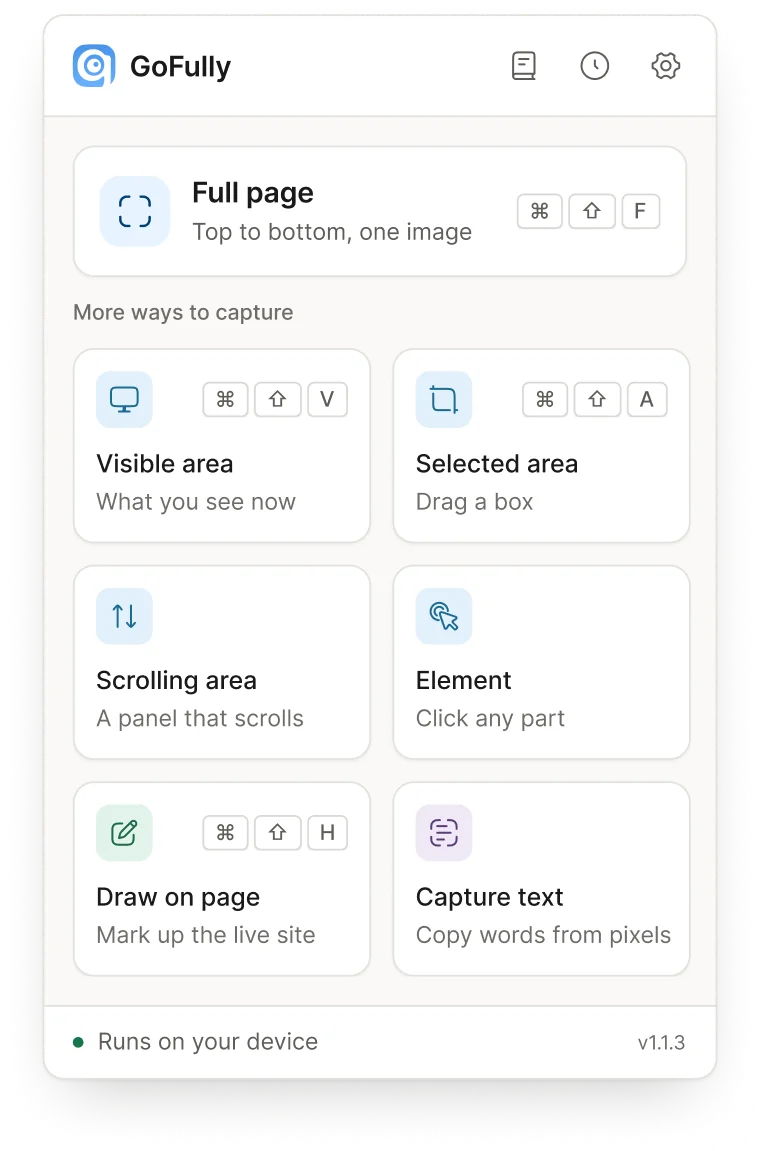
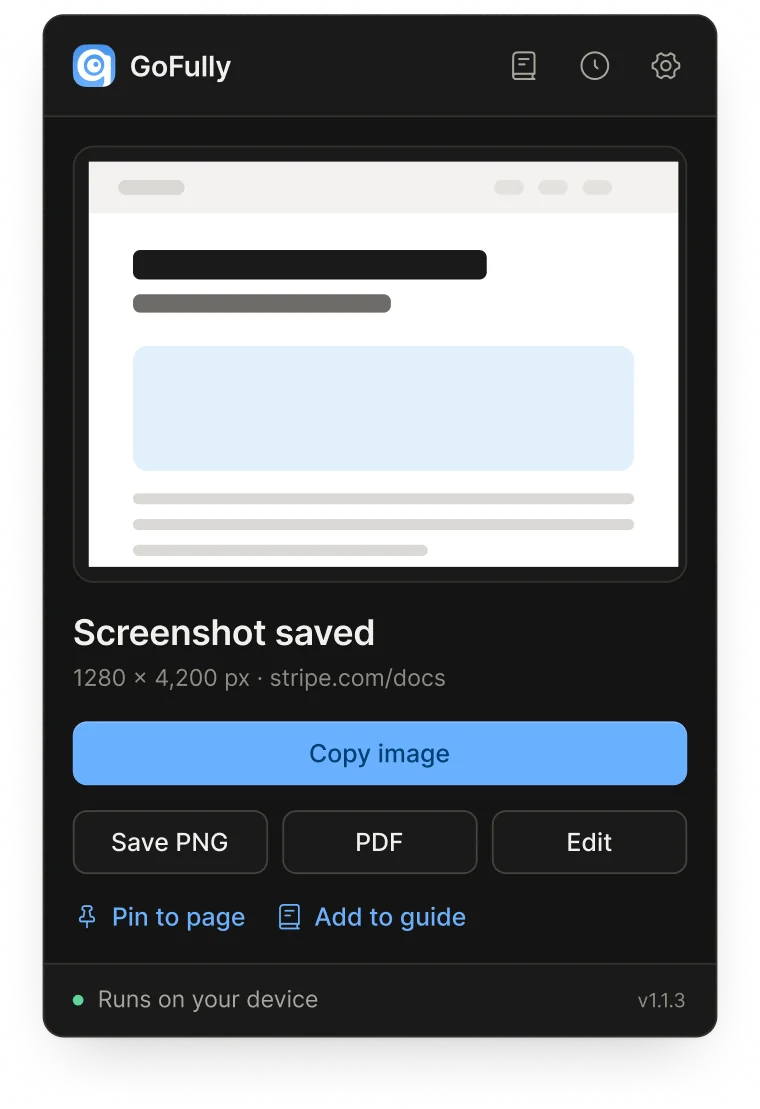
One primary action per screen, and a clear way out of every error
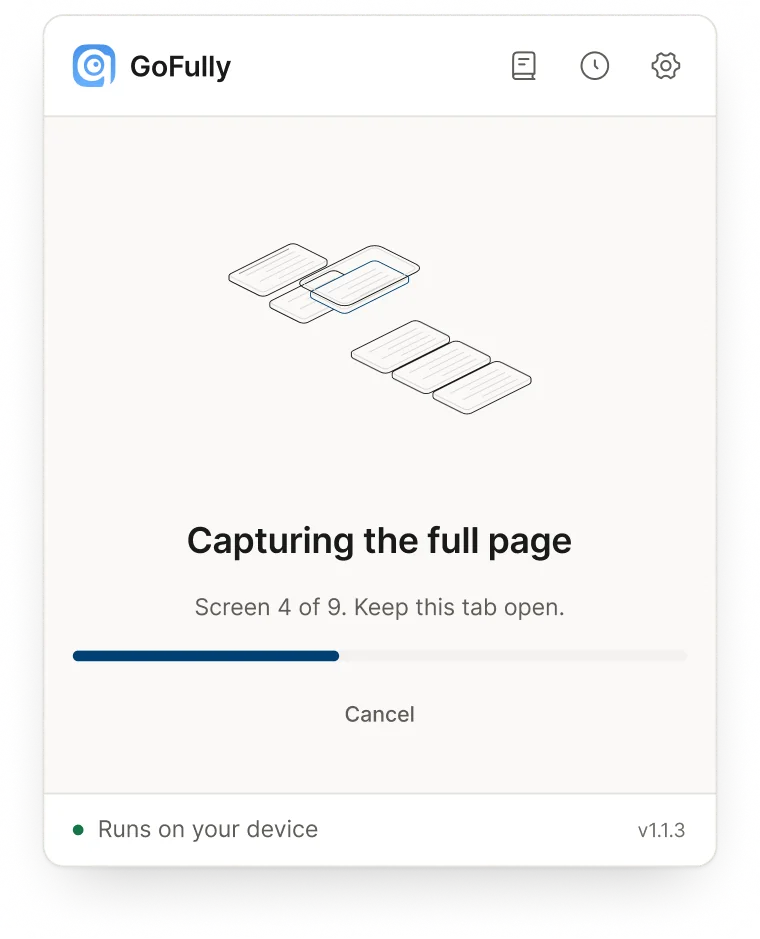
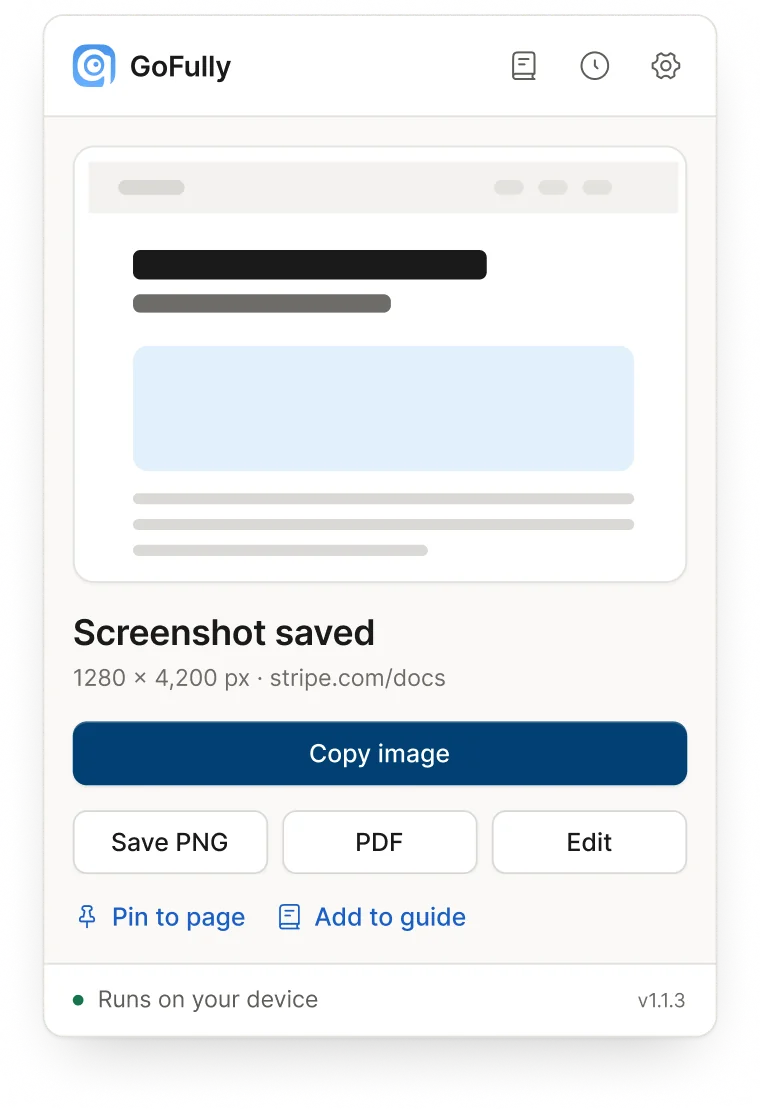
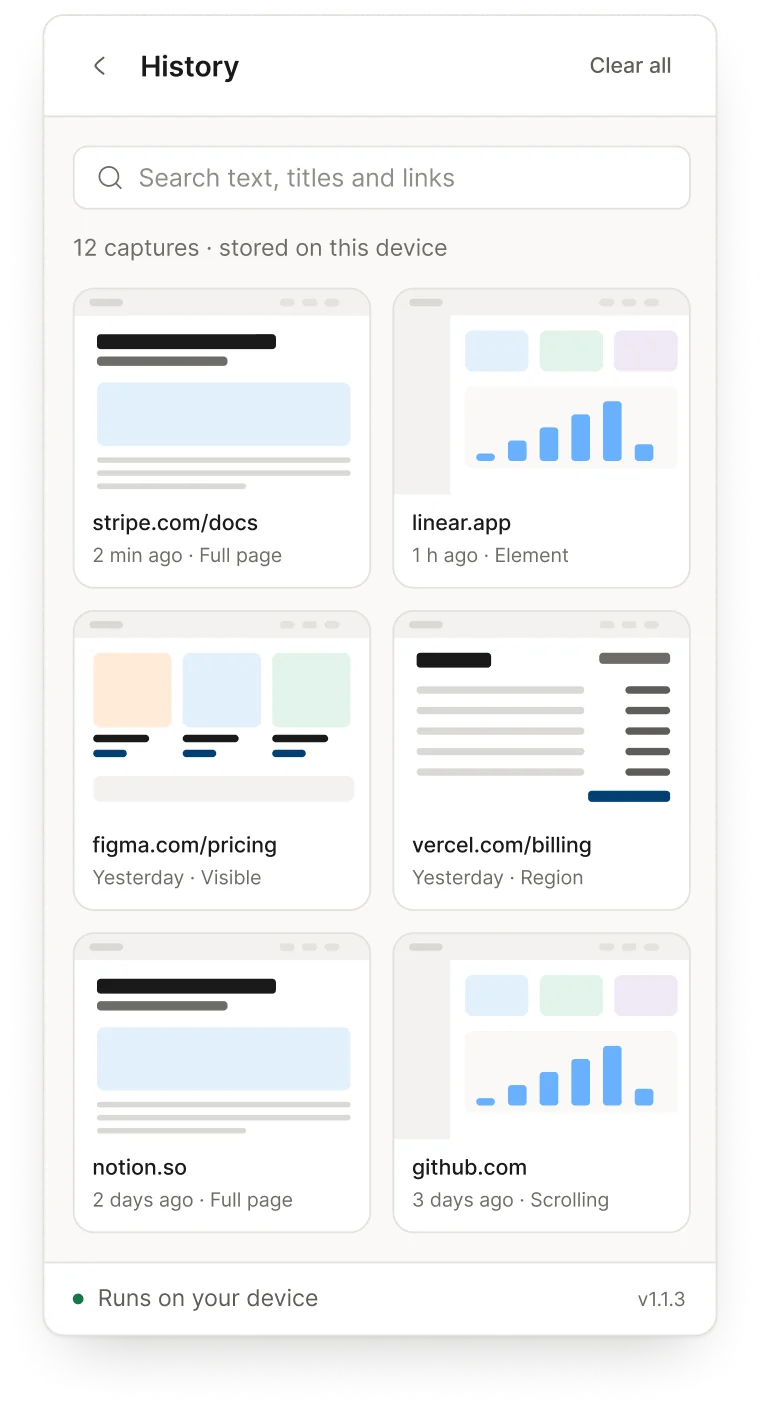
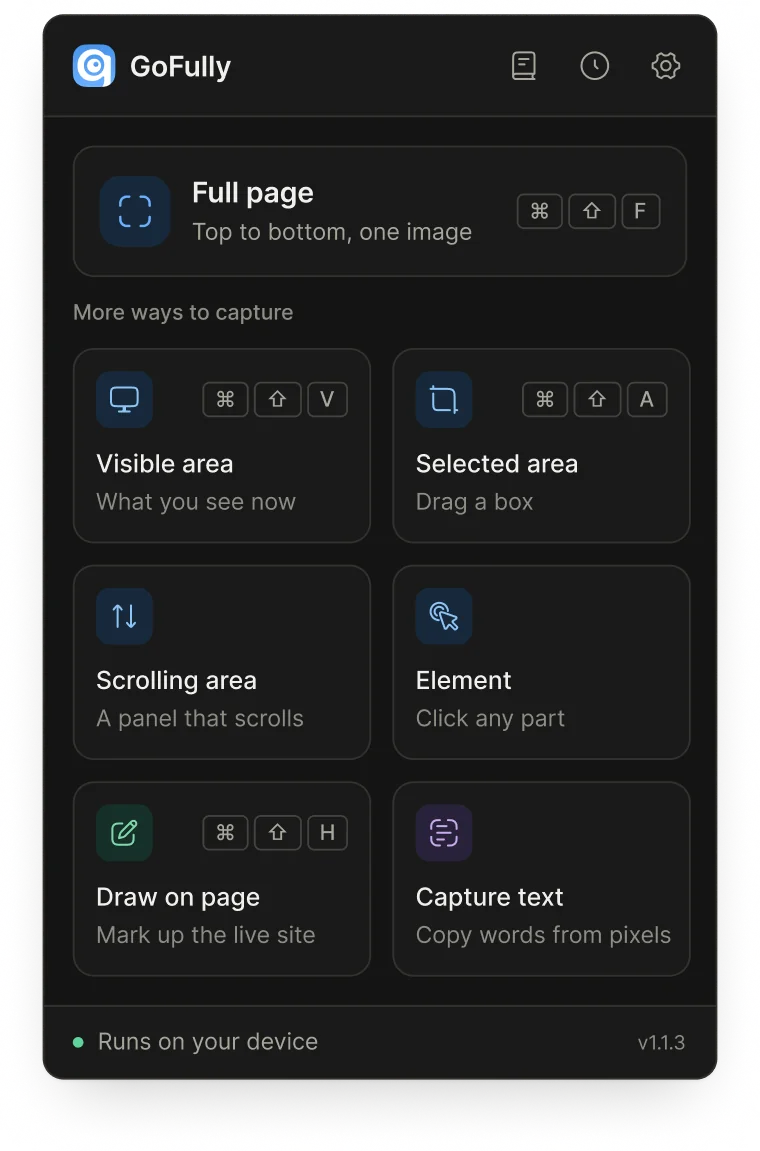
Every capture starts in the popup. It lists each way to capture with its shortcut: full page, visible area, a selected area, a panel that scrolls, one element, draw on page and text capture.
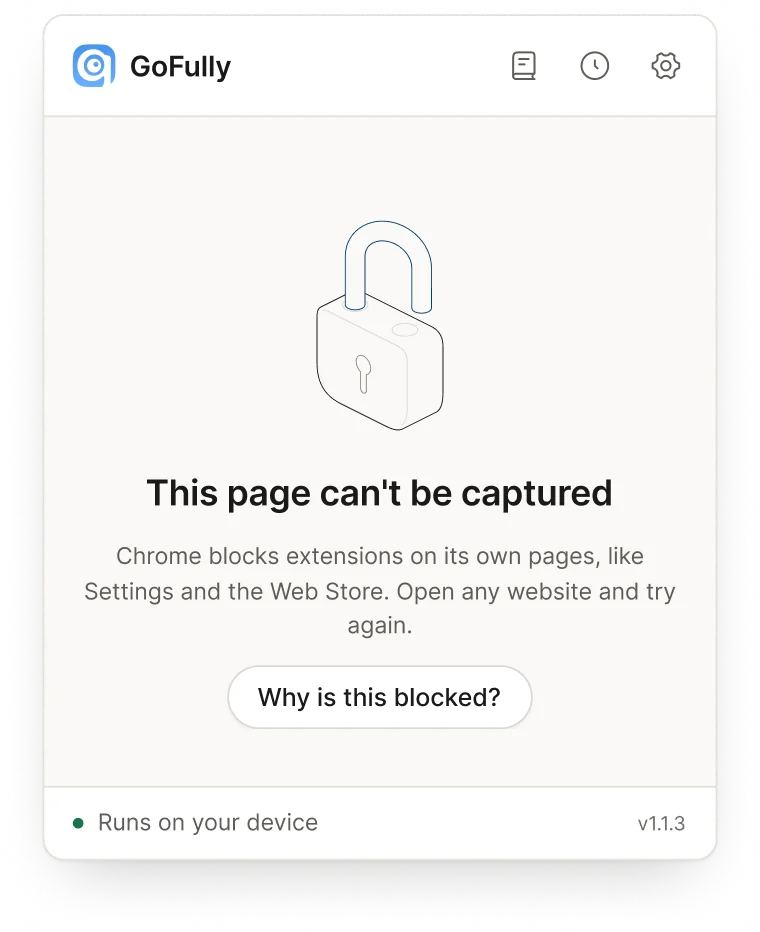
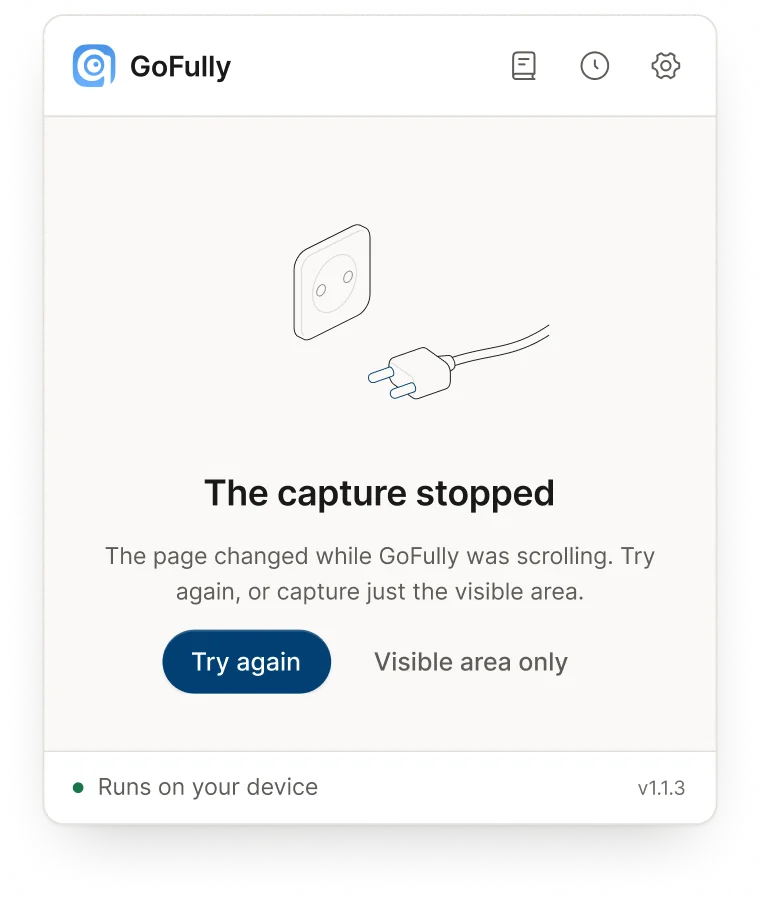
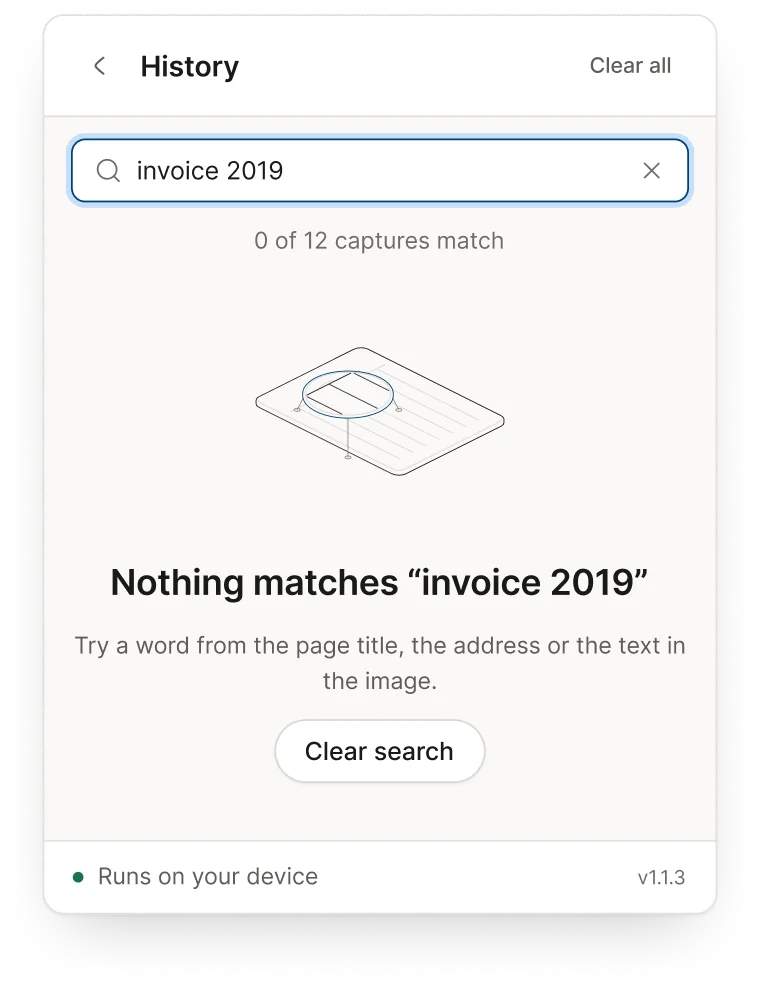
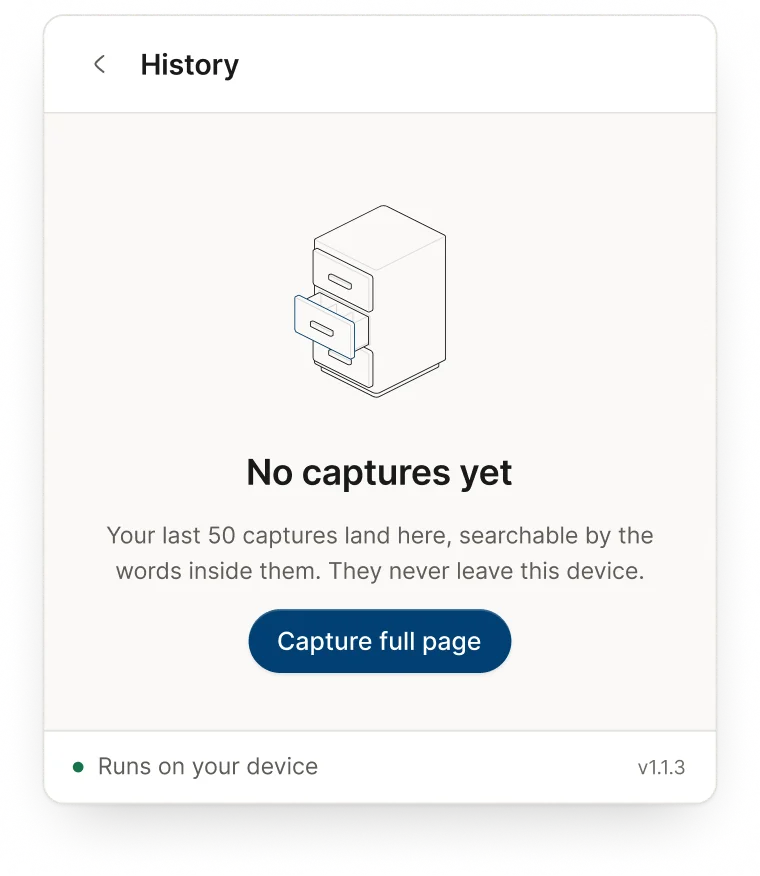
The redesign then followed a capture through every state it can reach, including the ones that go wrong: a page Chrome won't allow, a capture that stopped halfway, and a history search with no results. Each one explains what happened and offers the next step.
07Extension · On-page overlays
Overlays that sit on any website without fighting it
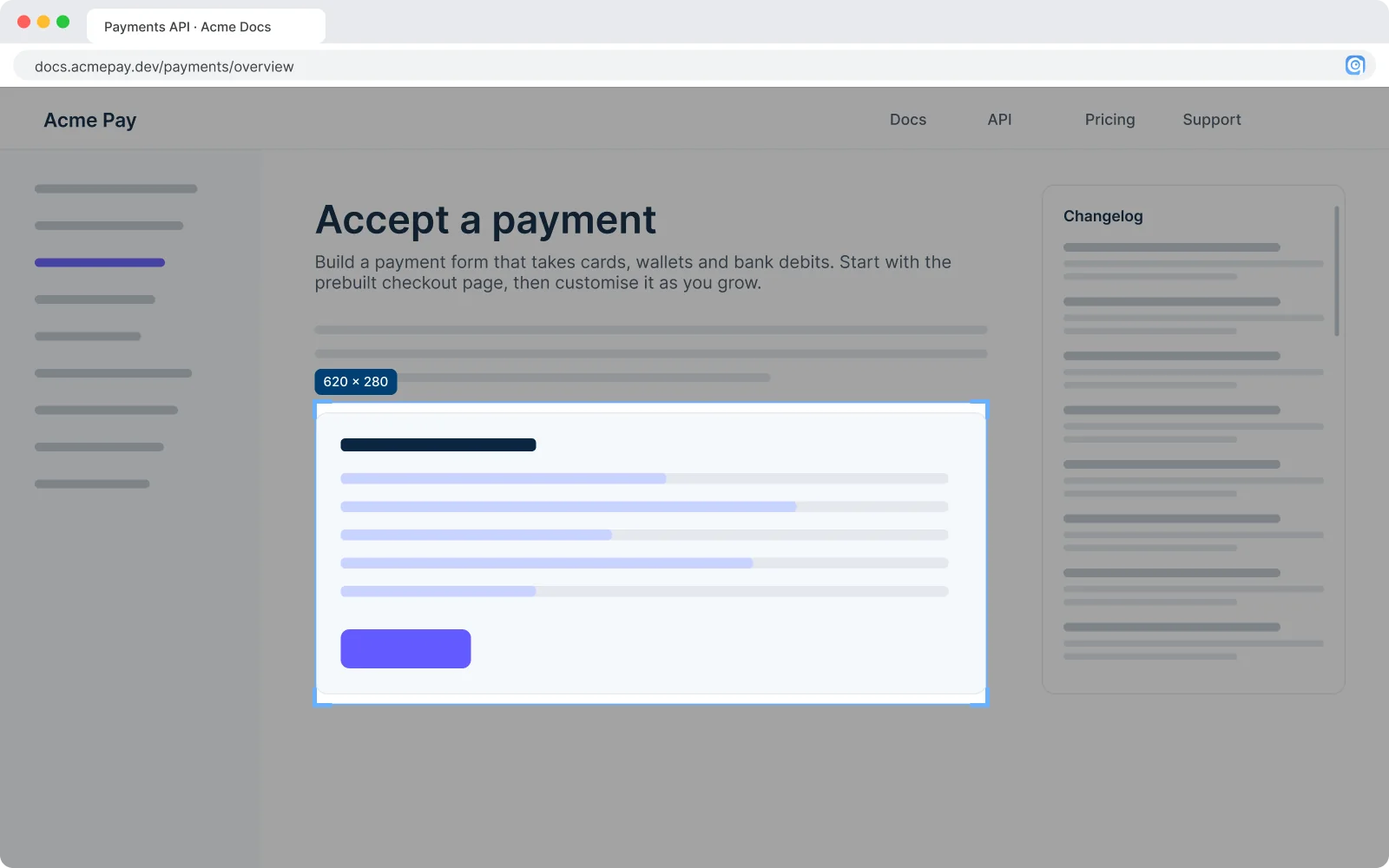
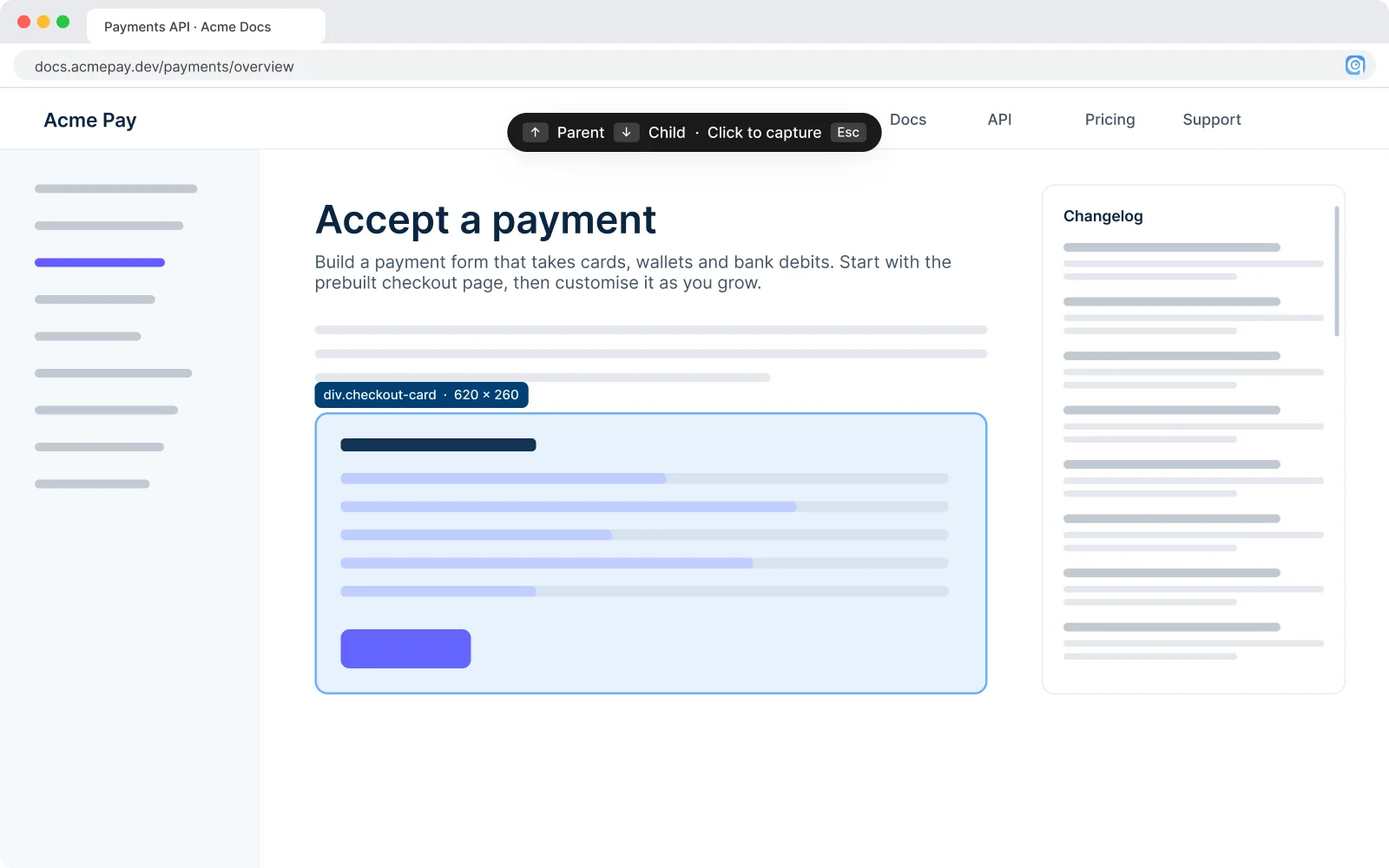
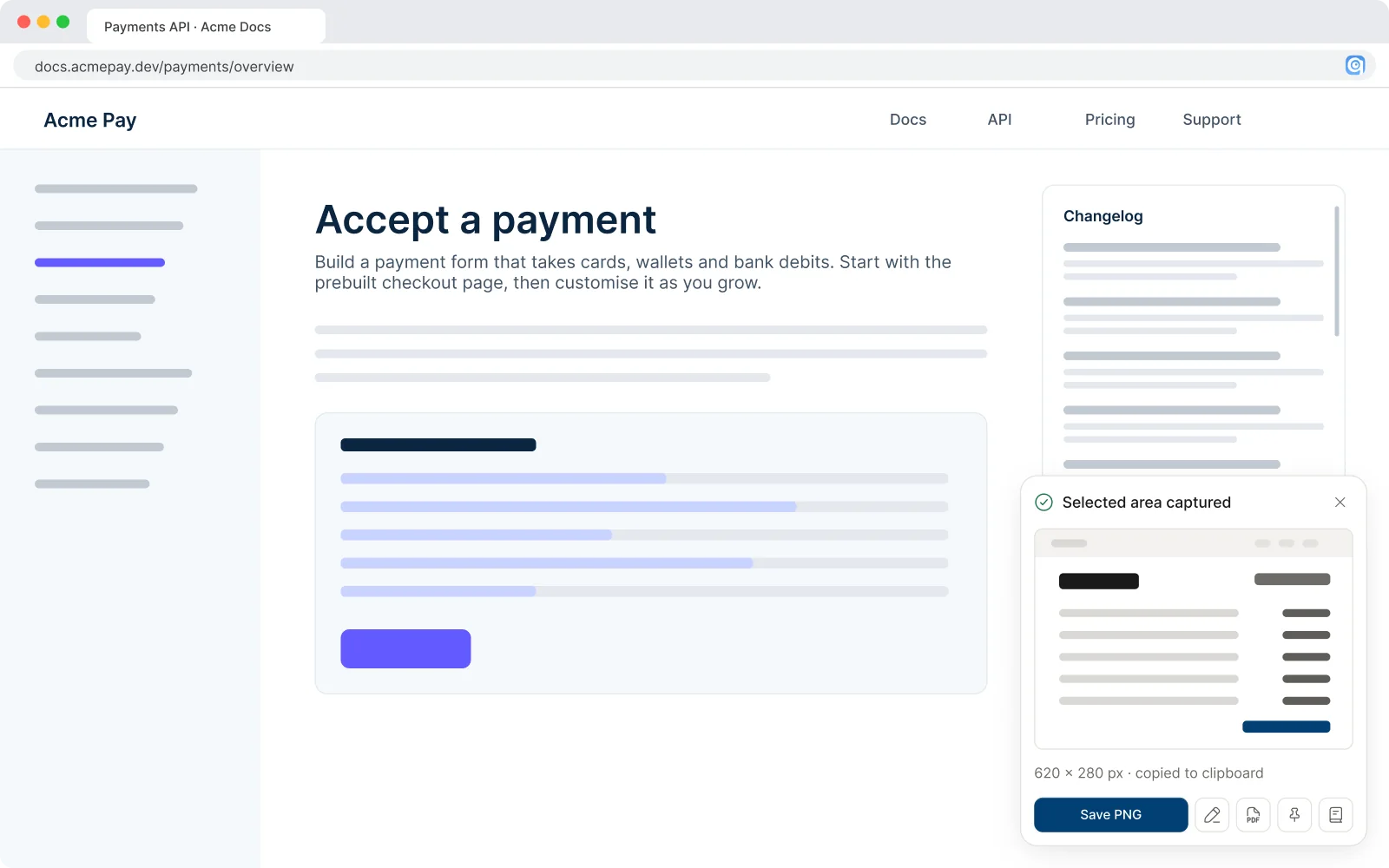
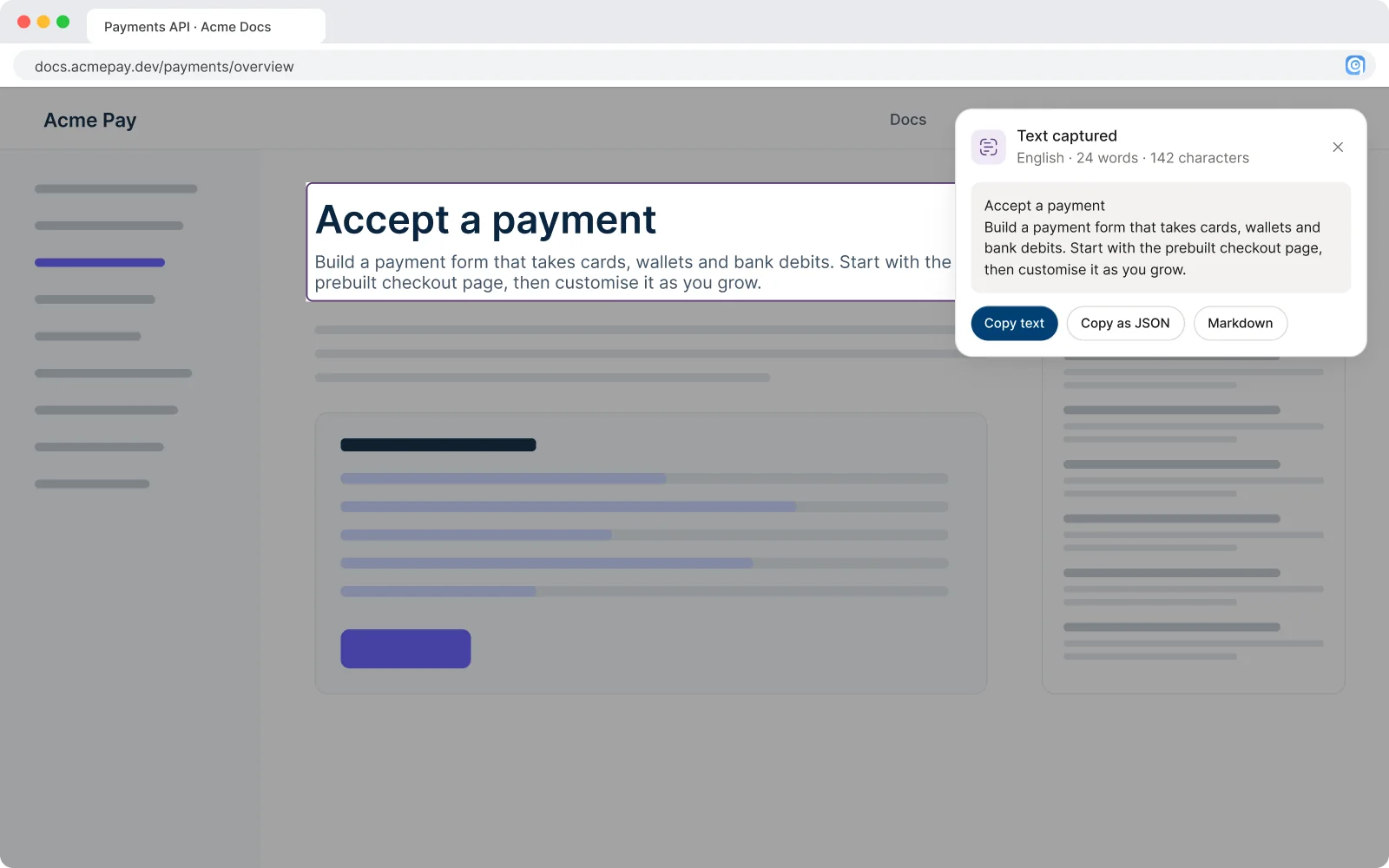
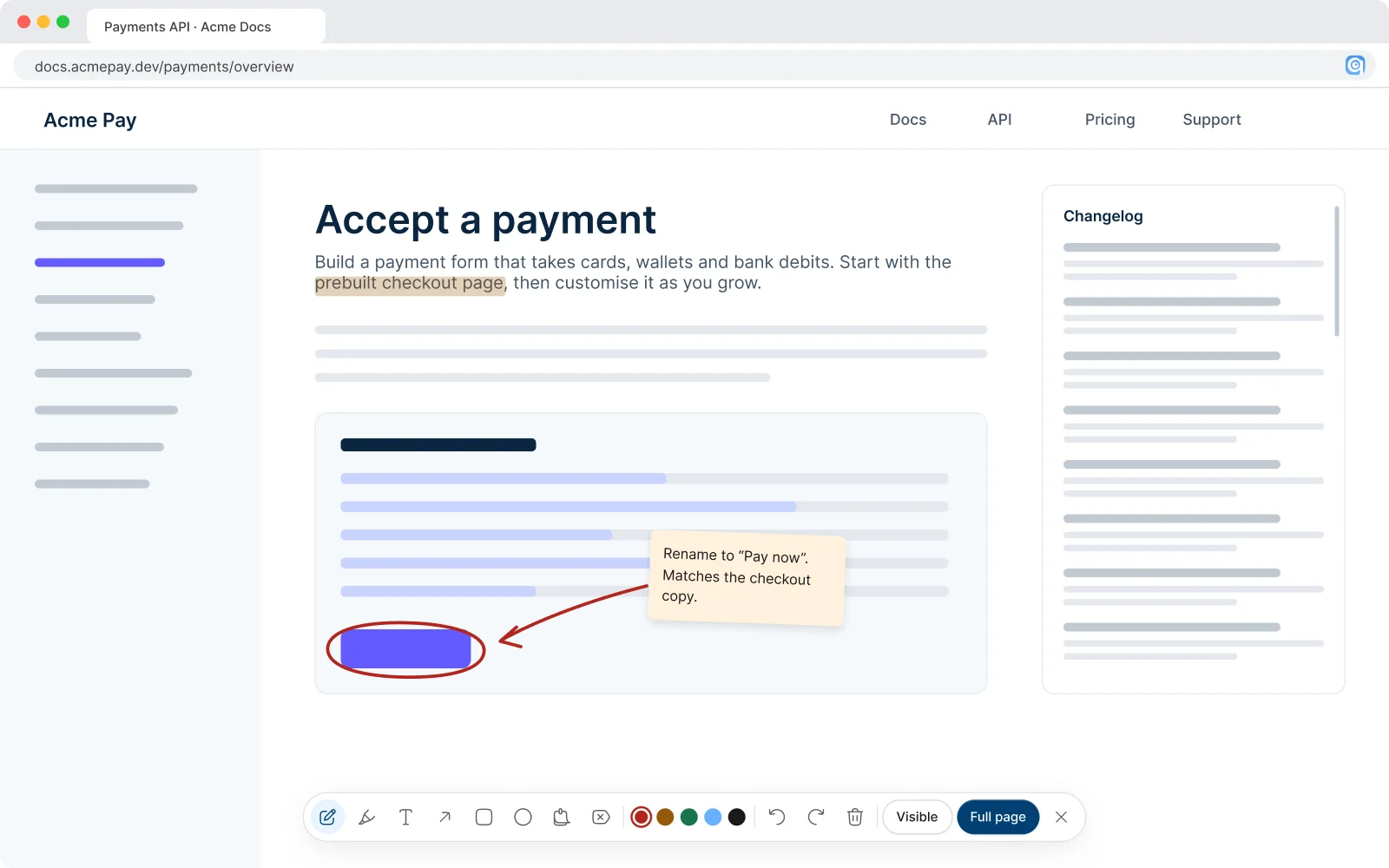
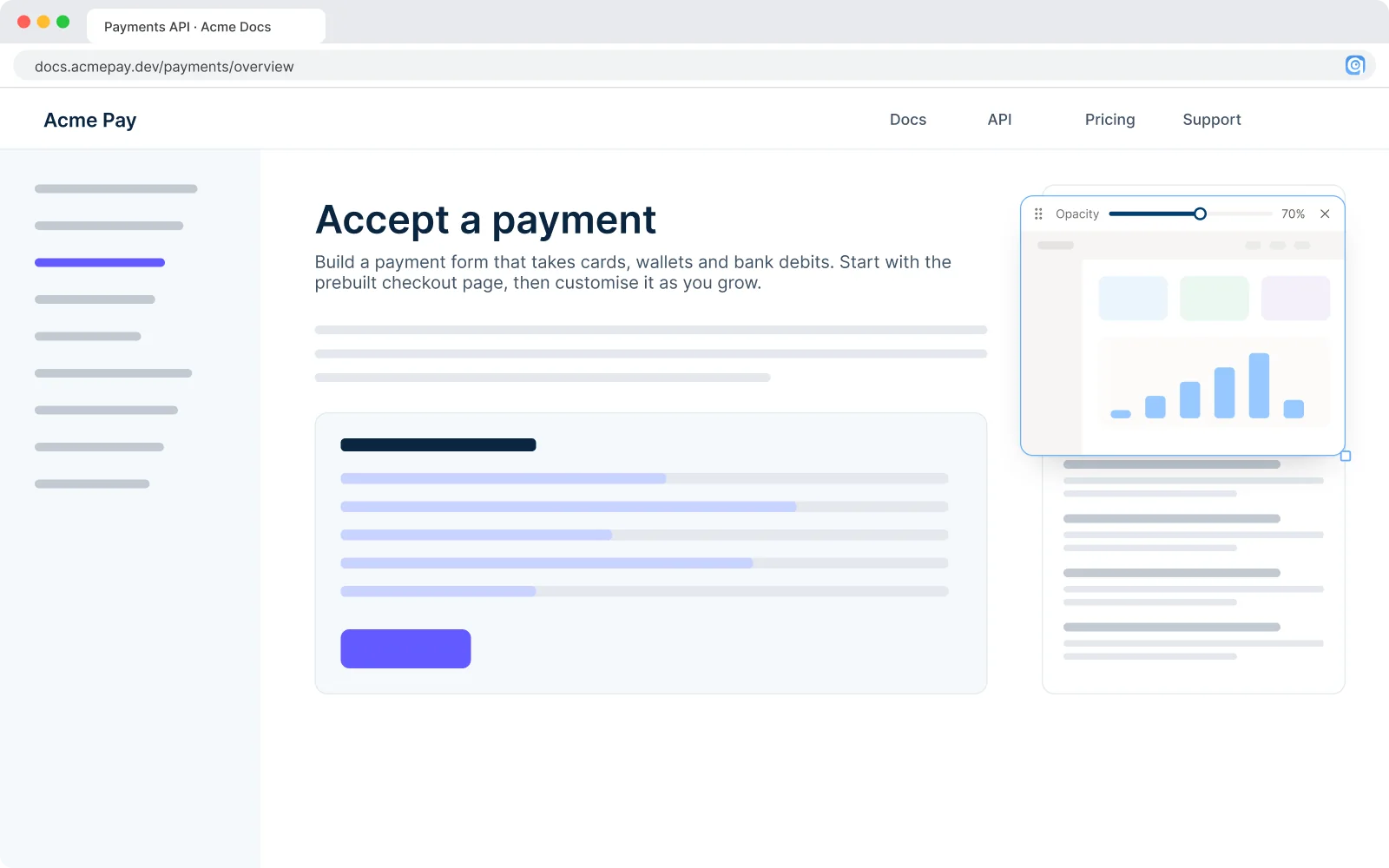
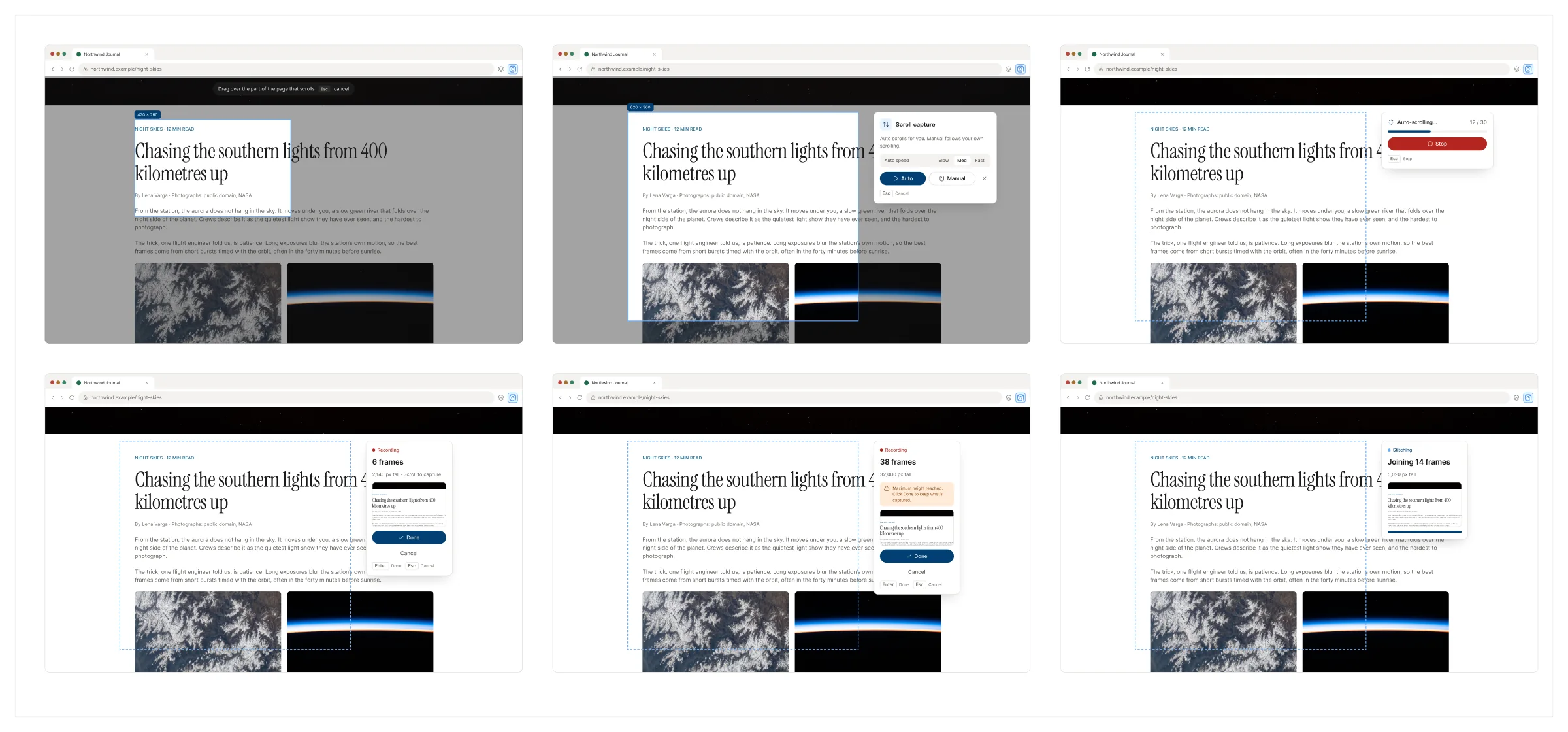
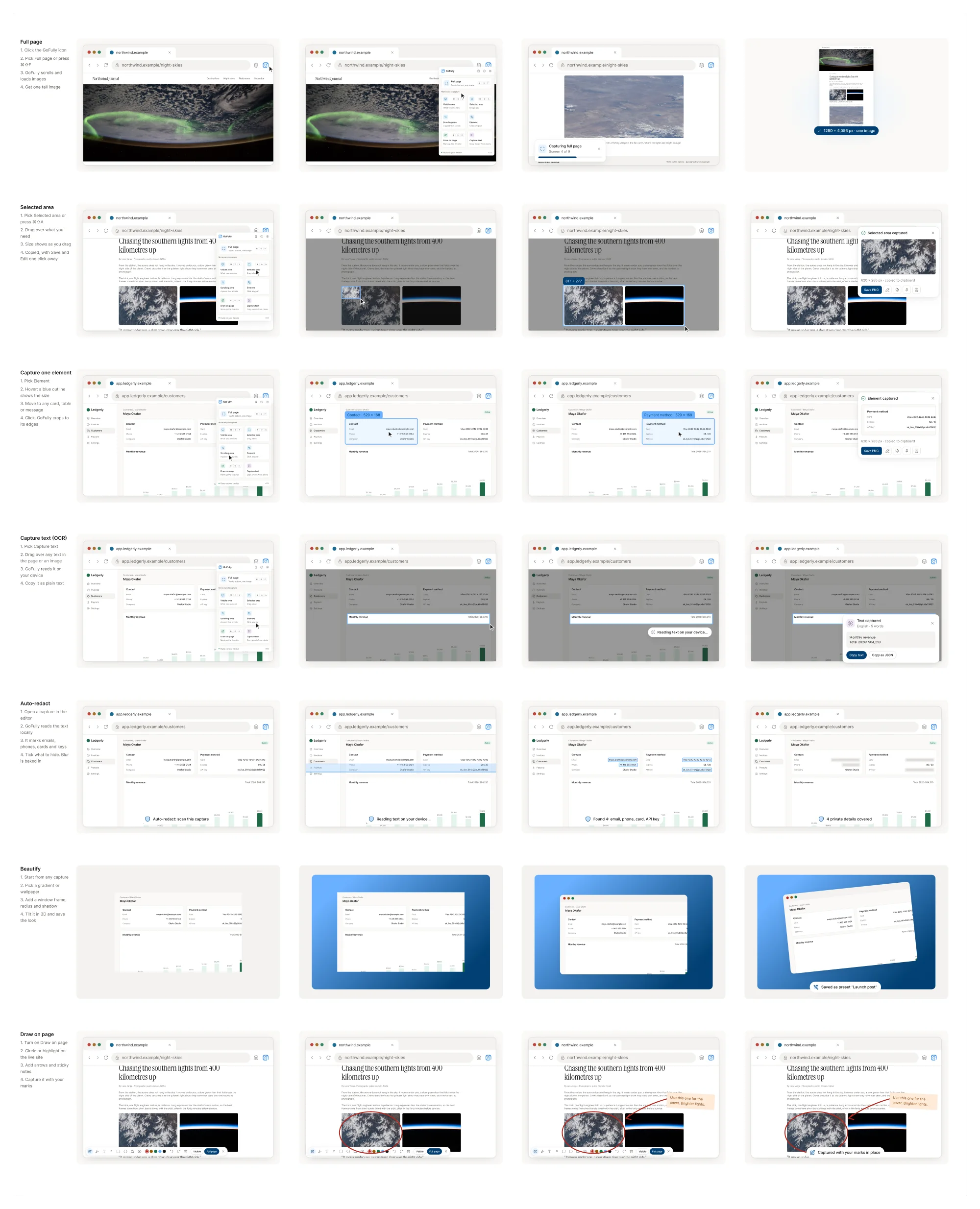
Most capture modes happen on the page itself. People drag a region, hover to pick one element, or pick a panel that scrolls inside its own box. After a capture, a result card offers copy, save, edit and pin. Text capture hands back text to paste, draw on page marks up a live site before it is captured, and a pinned capture floats over any page as a reference.
08Extension · The editor
Everything after the capture, in one quiet window
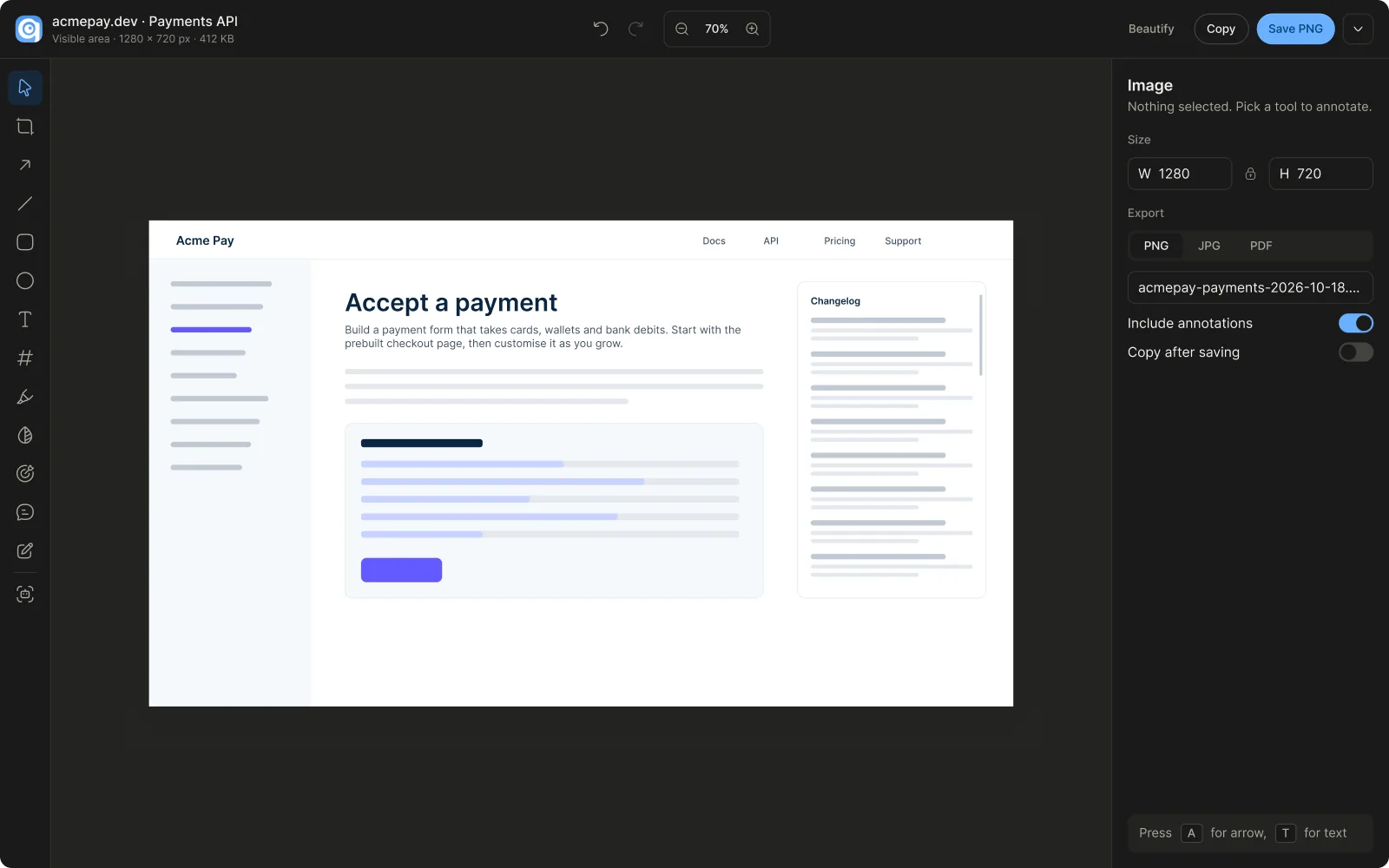
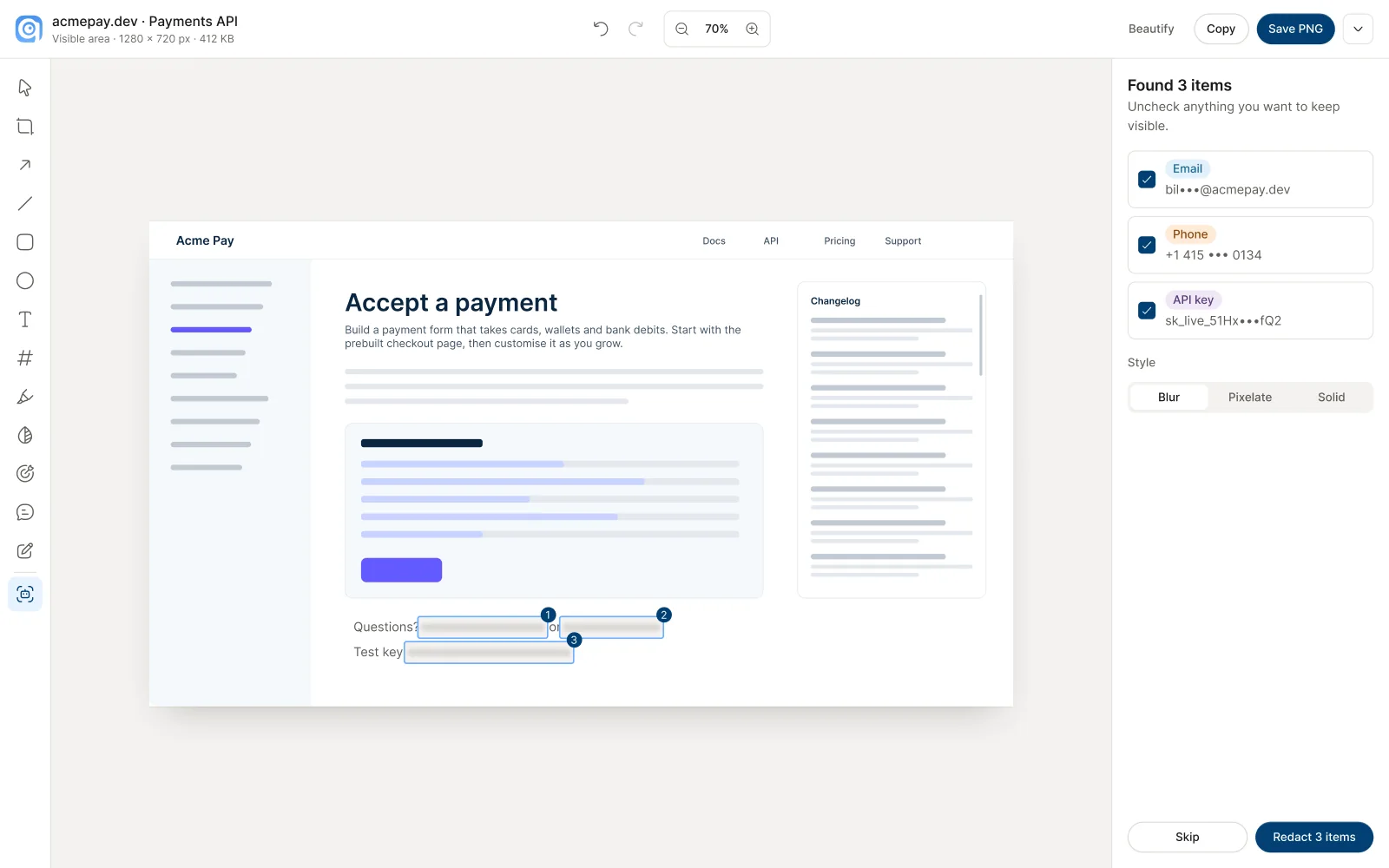
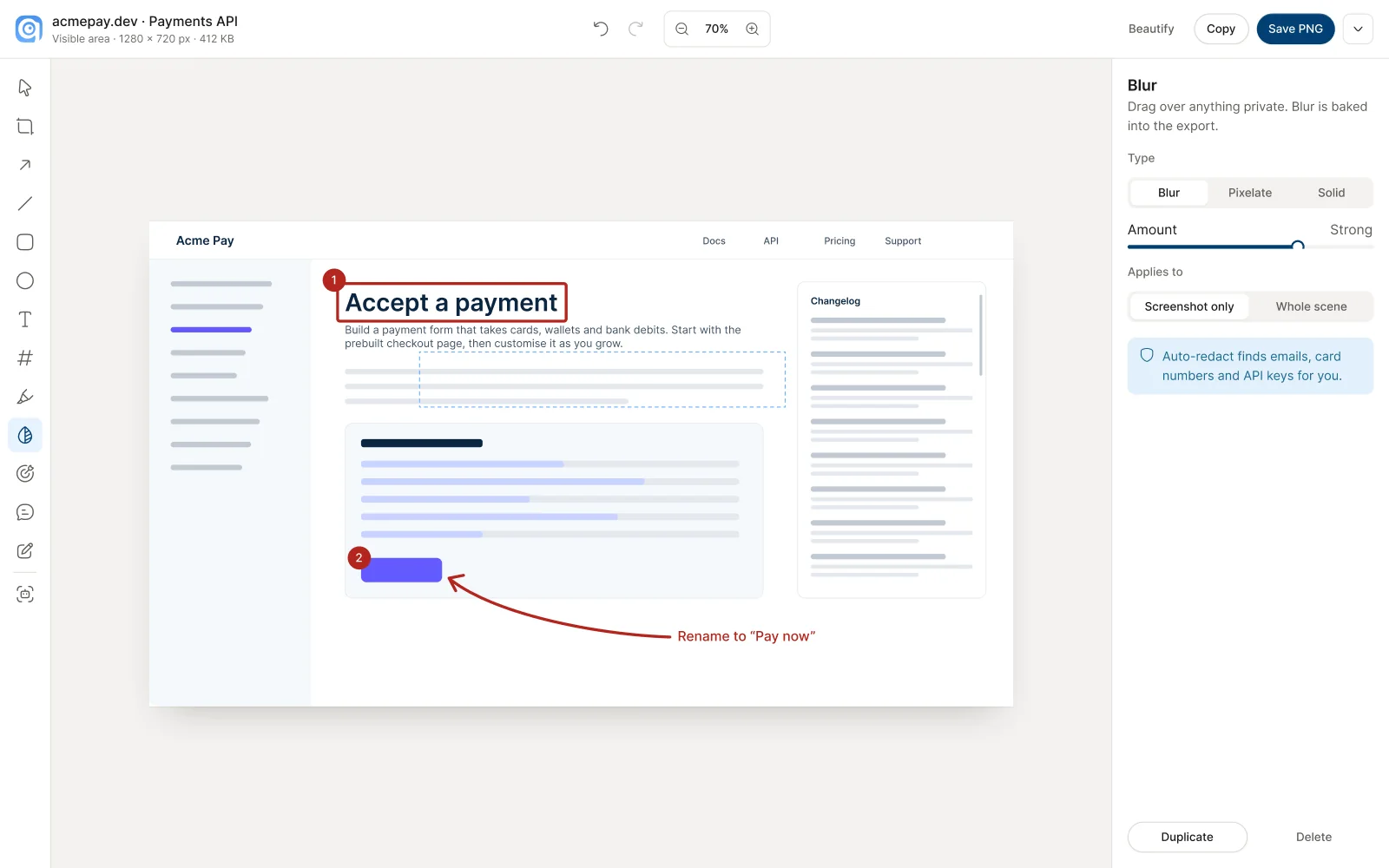
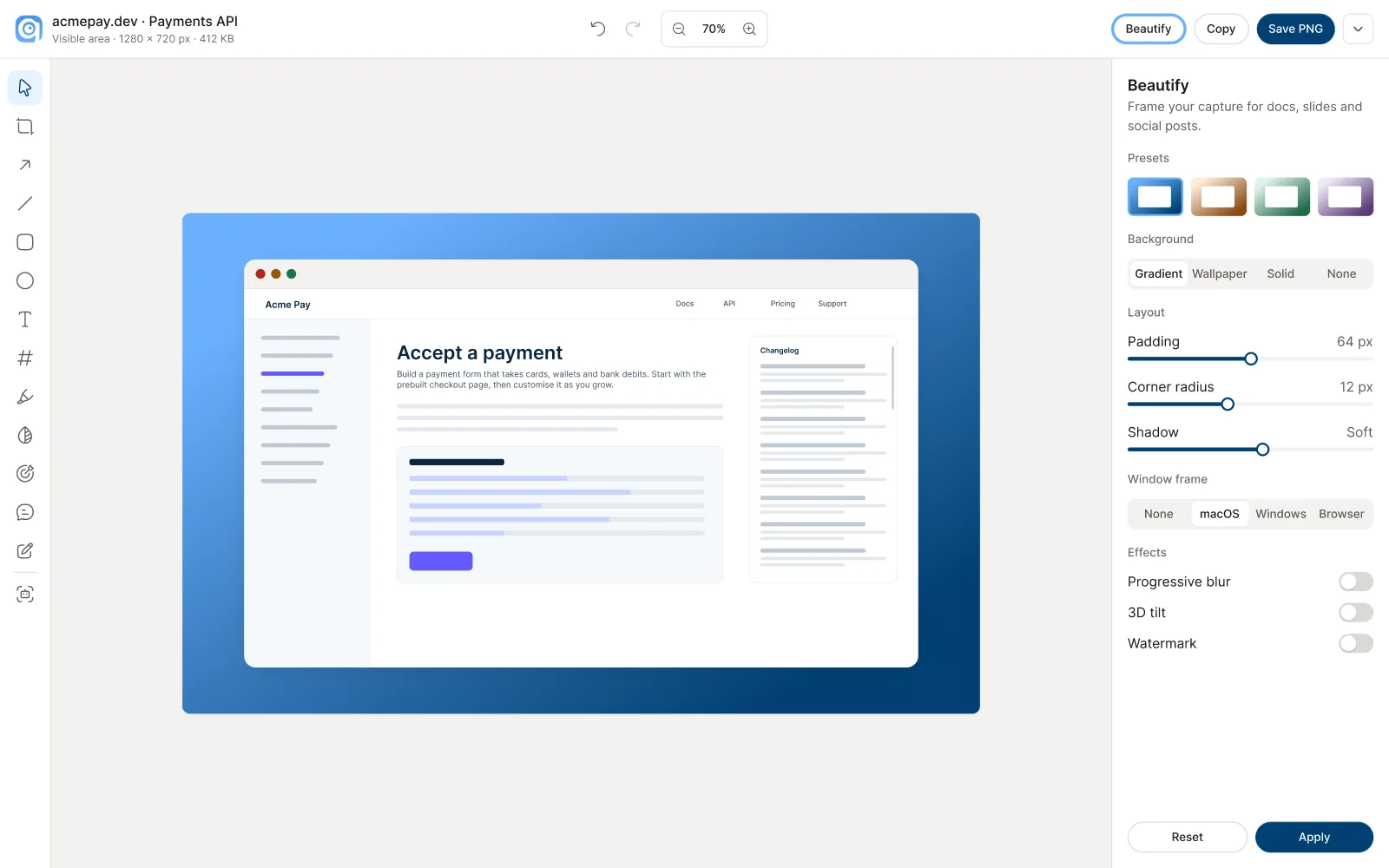
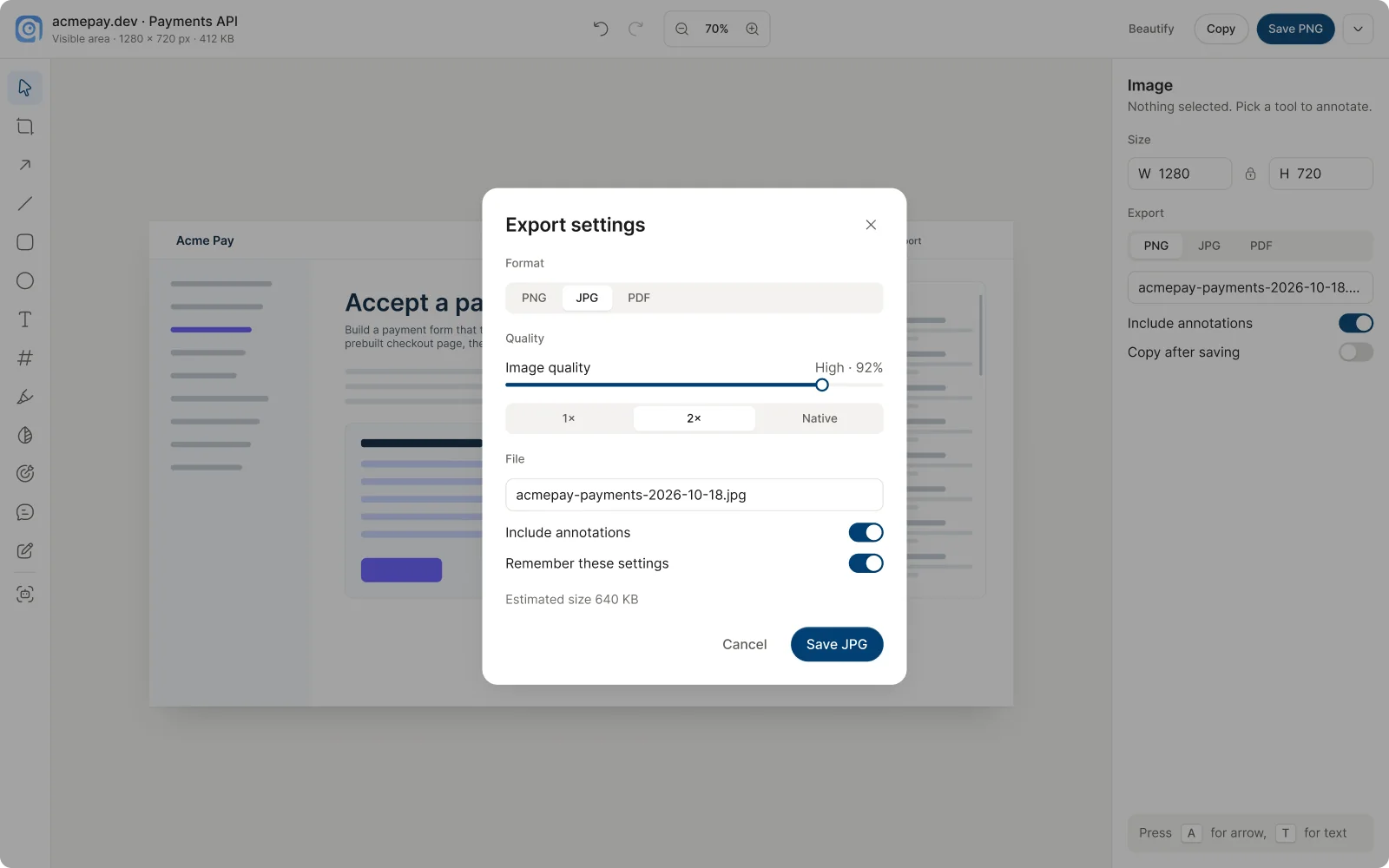
The editor holds crop, arrows and shapes, text, blur, auto-redact, Beautify and export. Auto-redact scans a capture for details like emails and card numbers and covers them before anything is shared. Beautify adds a background, padding, a browser frame or a 3D tilt for posts and slides. Light and dark share one layout; drag the slider to compare them.
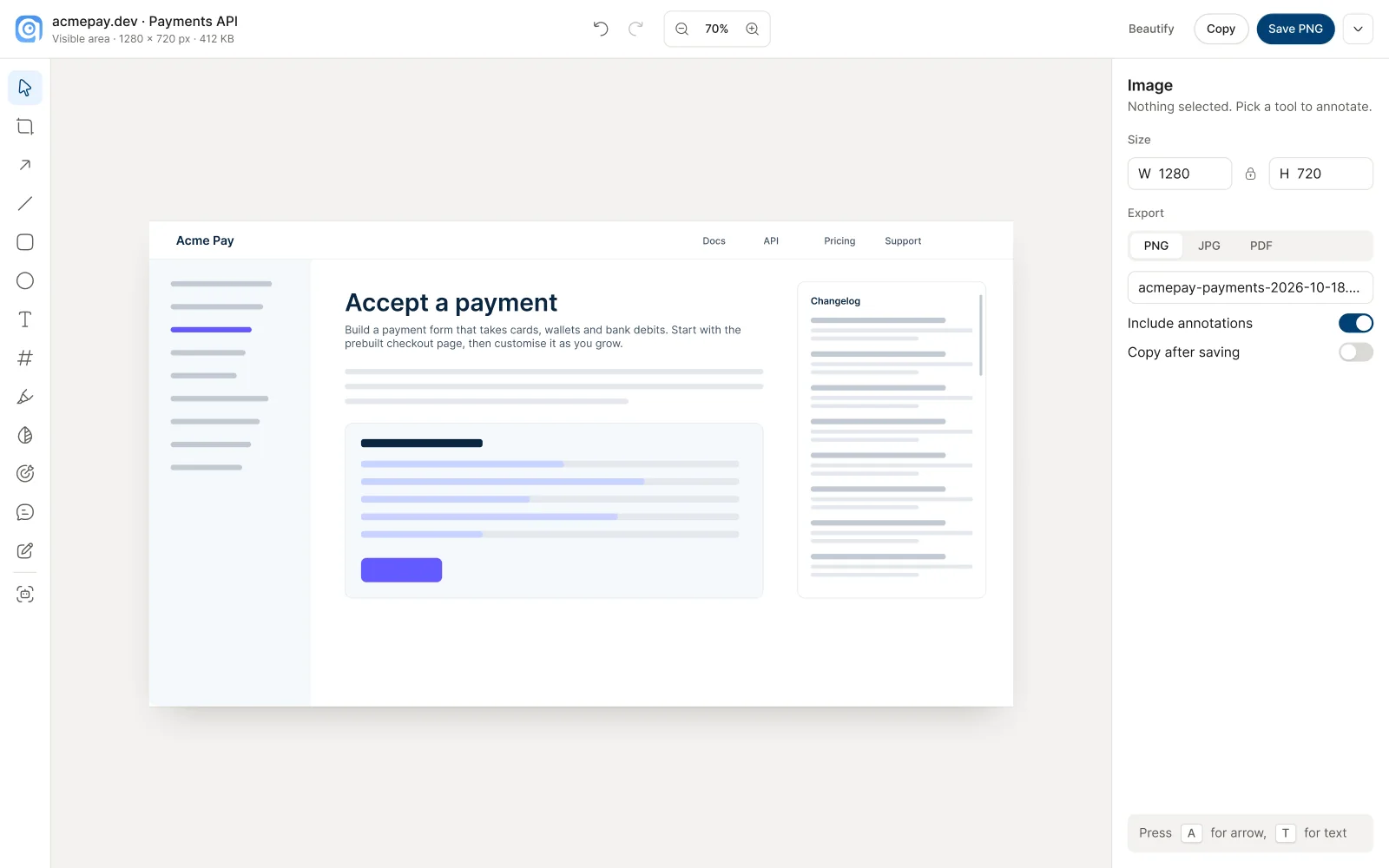
 Light
Dark
Light
Dark
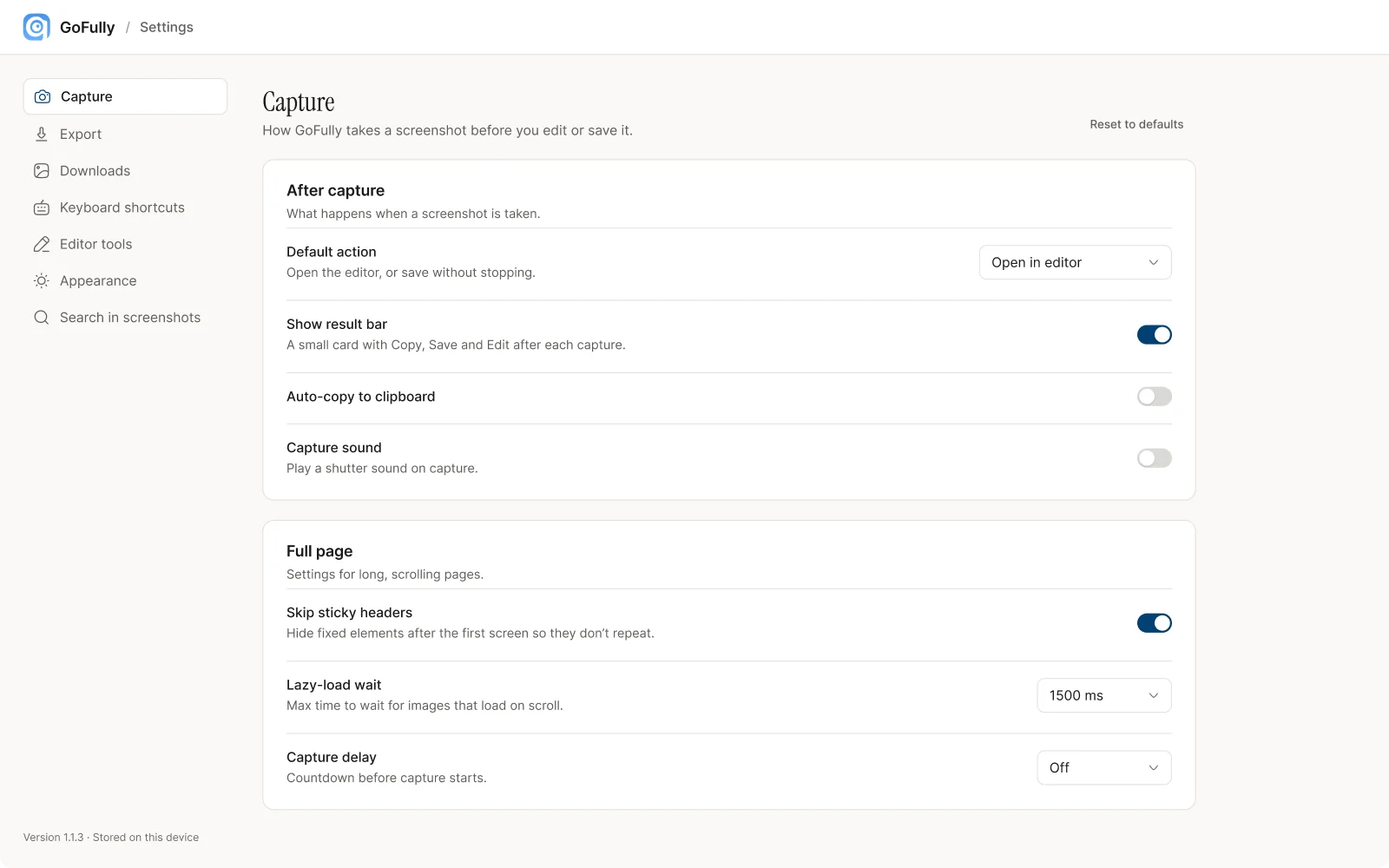
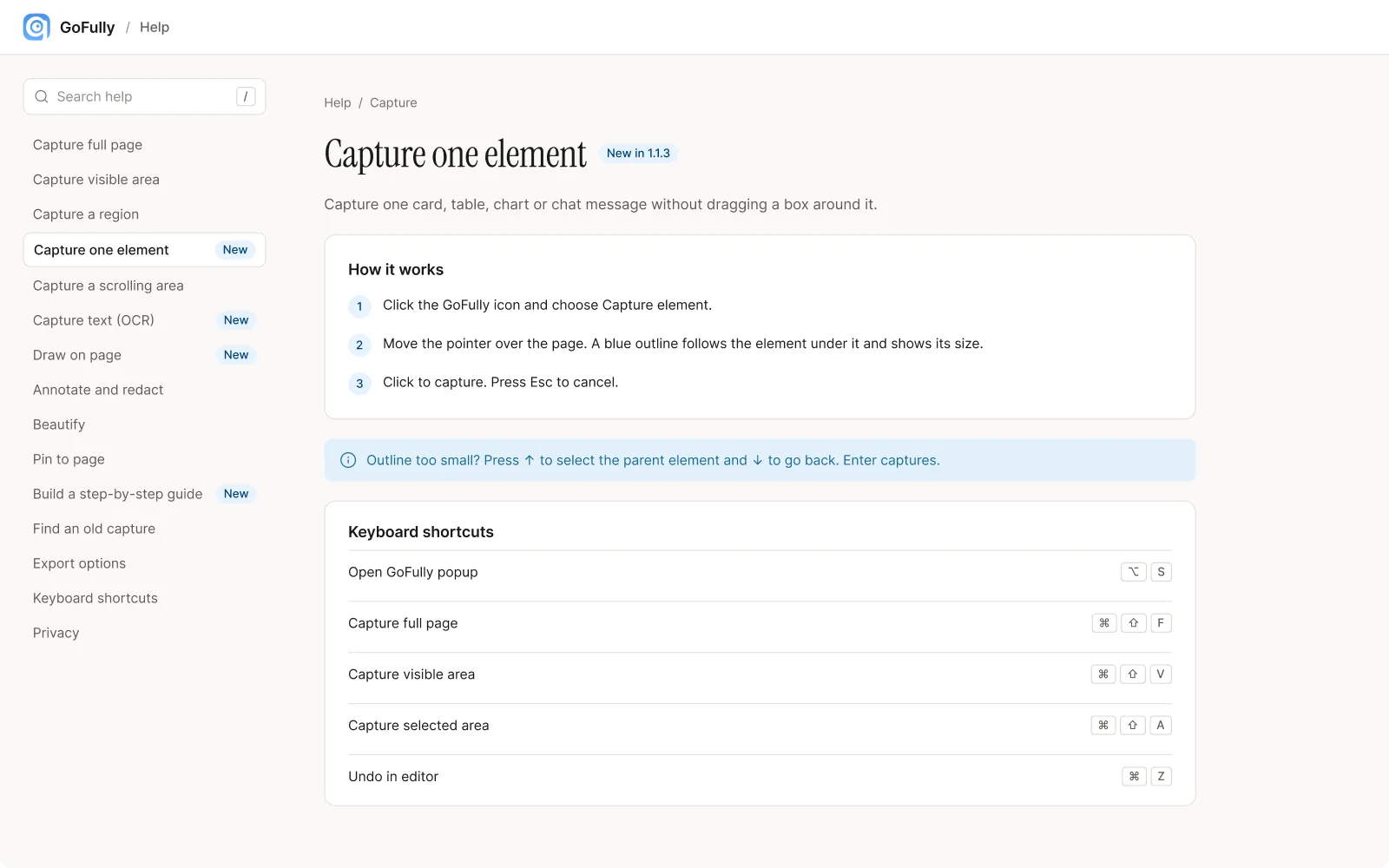
09Extension · Settings, guides and help
The quiet screens got the same care
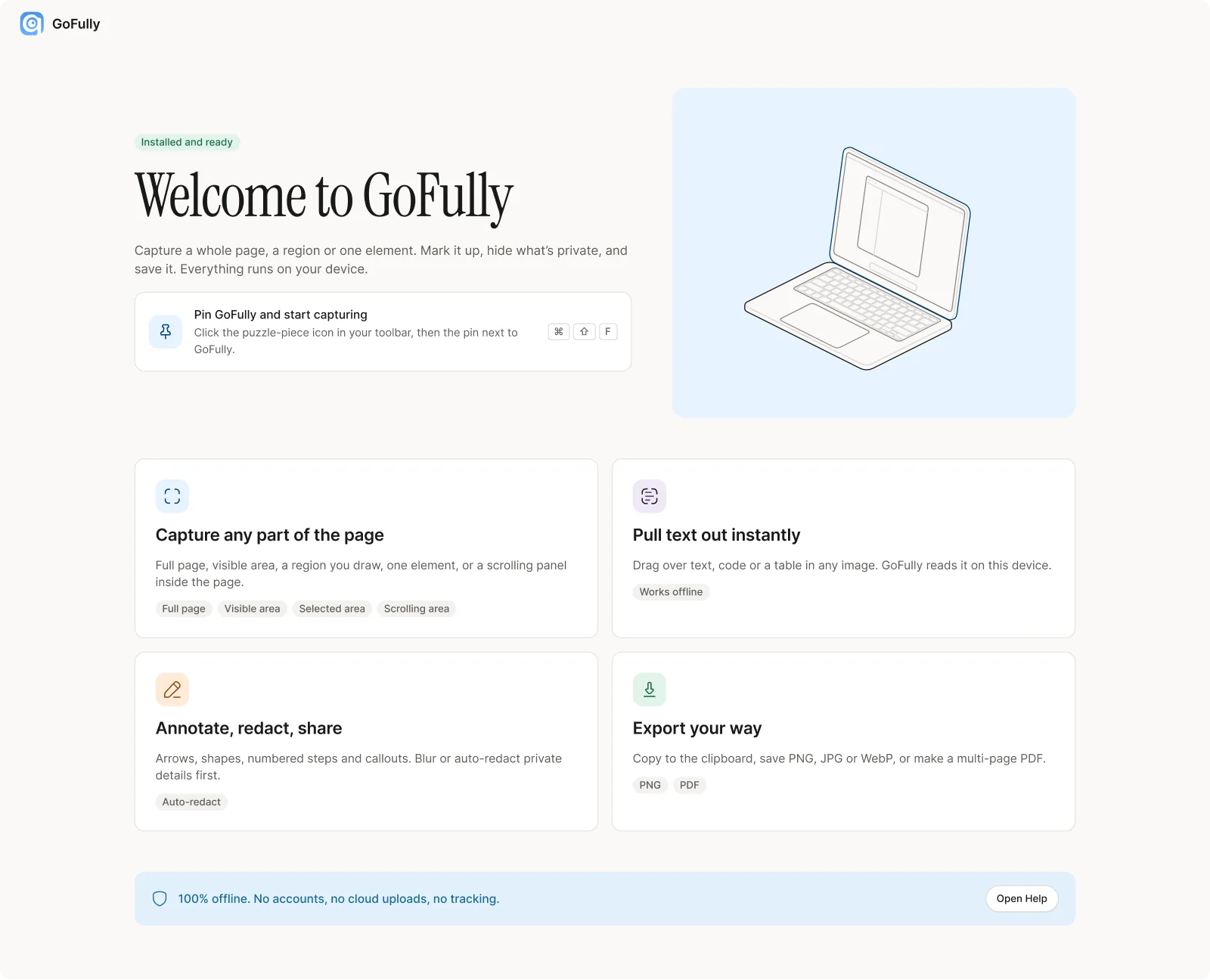
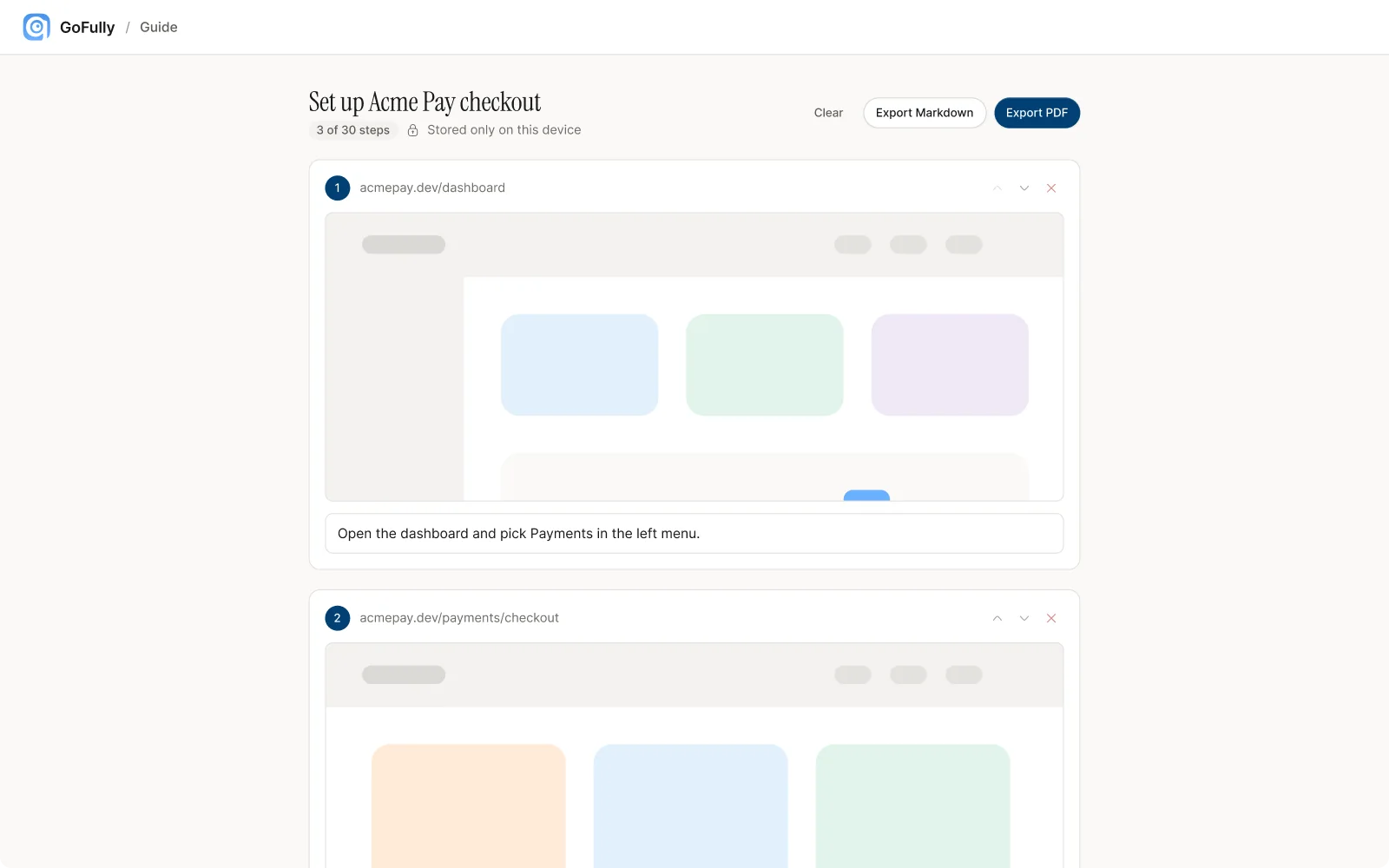
Settings, step-by-step guides, a welcome page that teaches the first capture, and help articles. Guides collect a series of captures with a line under each and export one PDF or Markdown file, which turns a set of screenshots into onboarding docs or a bug report.
10Website · Old and new
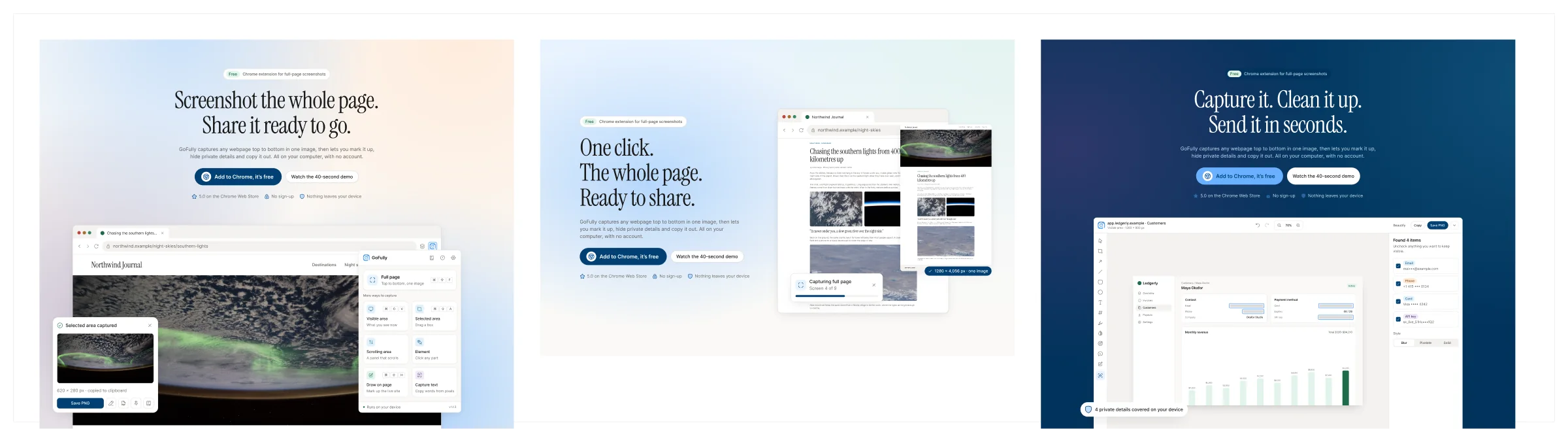
From a list of features to one sentence anyone can repeat
Old: Full Page Screenshot Tool. One Extension. Every Job. New: Screenshot the whole page. Share it ready to go. The privacy promise moved from a badge into the first paragraph: all on your computer, with no account.
I tried three hero layouts against a realistic long article, then storyboarded every feature demo frame by frame, so the site shows the real extension working on a real page instead of tilted mockups.
Before
After


11Where it stands · And what's next
One product, one look, one promise on every surface
Designed: the new brand and its 41-page guide, Design System v2, more than 70 extension screens and states in light and dark, and the new website.
Built: the new website runs in development and is not live yet; the live site and store listing still show the old design. The extension's current release is v1.1.3.
Next: v1.2 pushes further on privacy and precision
Redact page
Covers emails, card numbers, phone numbers, ID numbers and API keys on the live page, before the capture.
Measure
Hover any element for its size, padding, margin and text style, measure gaps, and copy any colour as hex.
Delayed capture
Wait 3, 5 or 10 seconds to catch an open menu or a tooltip.
QR codes and barcodes
Read on the device, with a safe Open button for web links.
The features didn't change. What changed is that every surface, from a 16 px toolbar icon to the landing page, now says the same thing: capture the whole page, keep every pixel private.
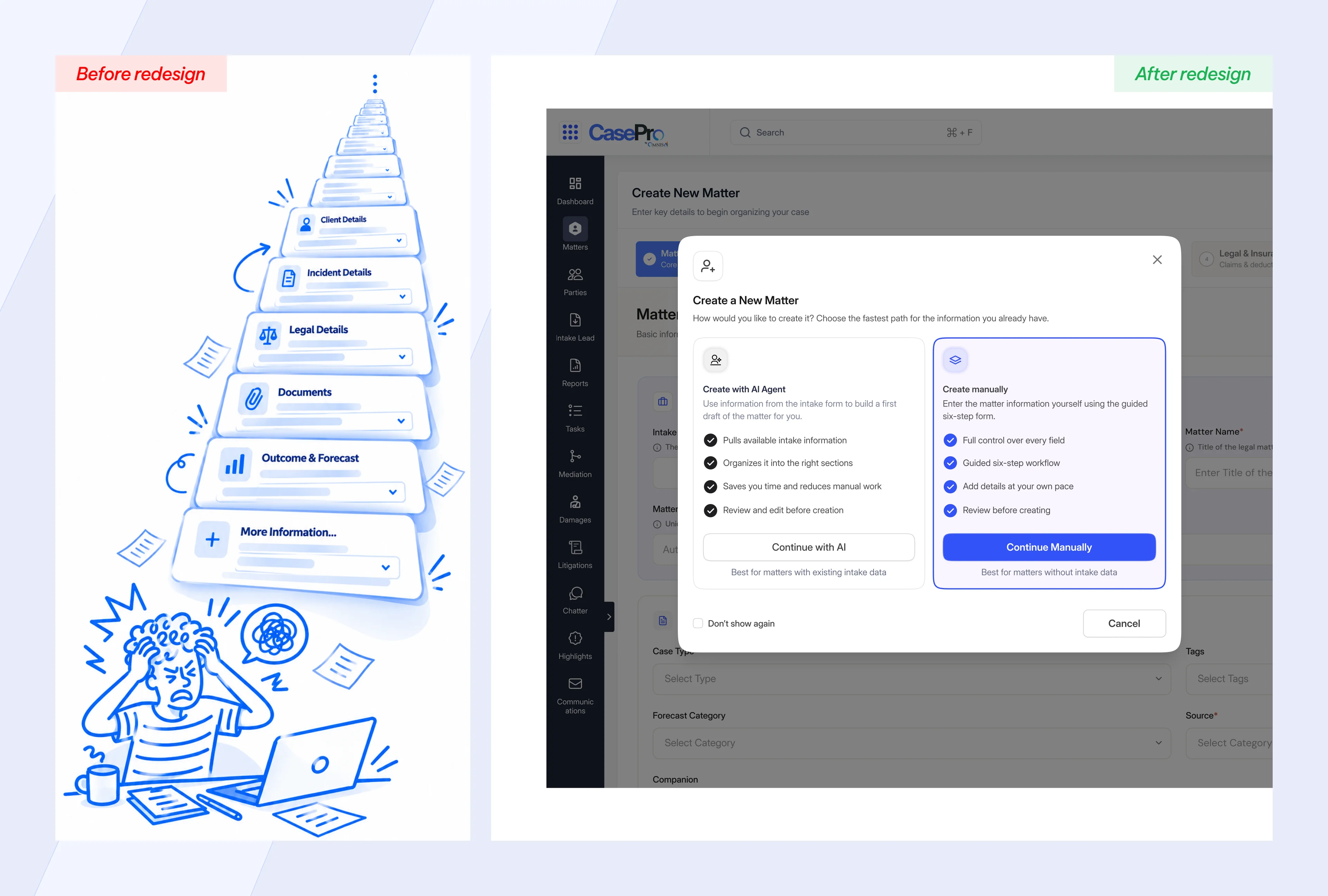 I split a merged intake-and-matter form into two linked systems: an AI-assisted path and a manual path into each new matter.
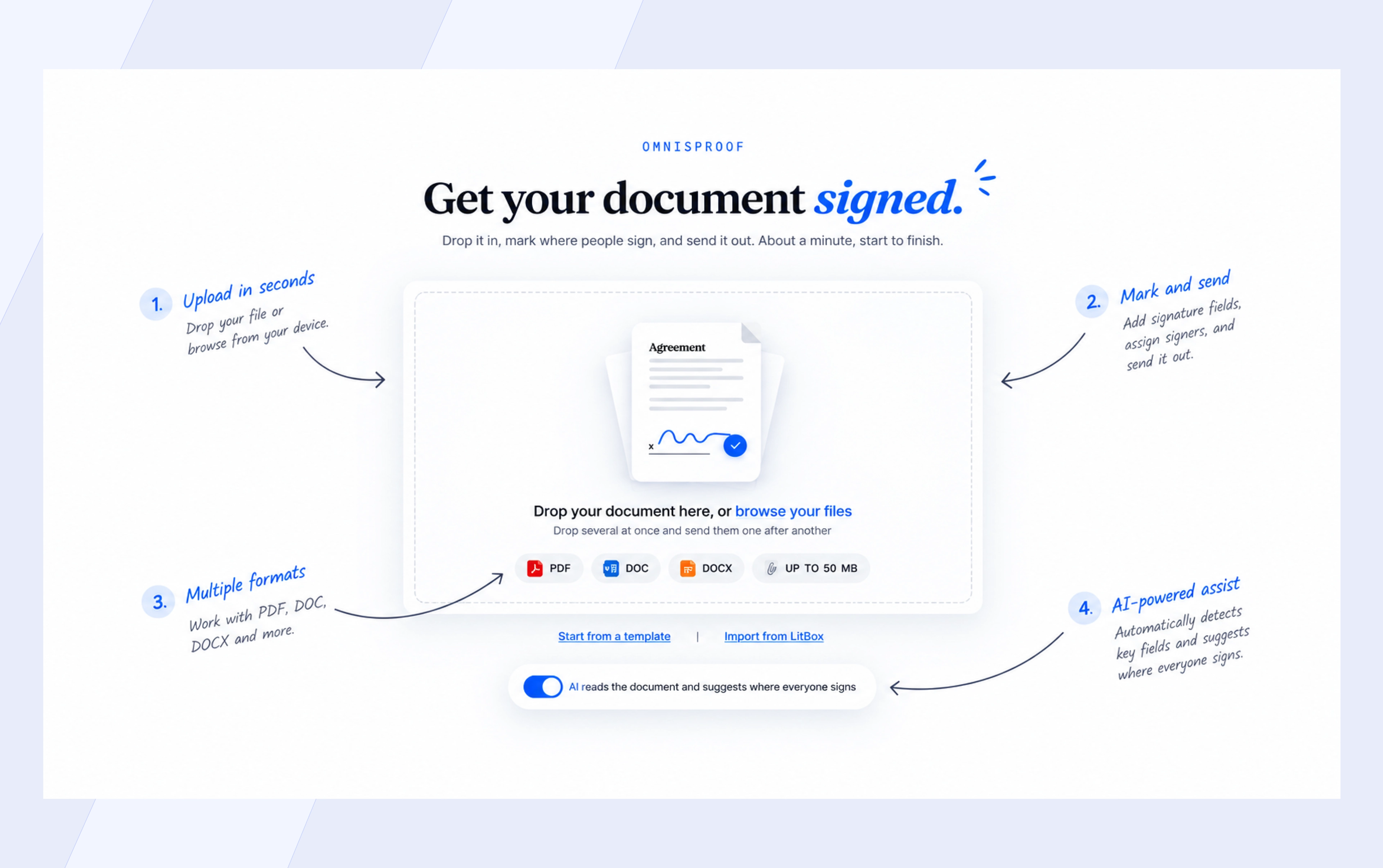 I replaced OmnisProof's disjointed modal wizard and manual field placement with a persistent canvas and reviewable AI detection.
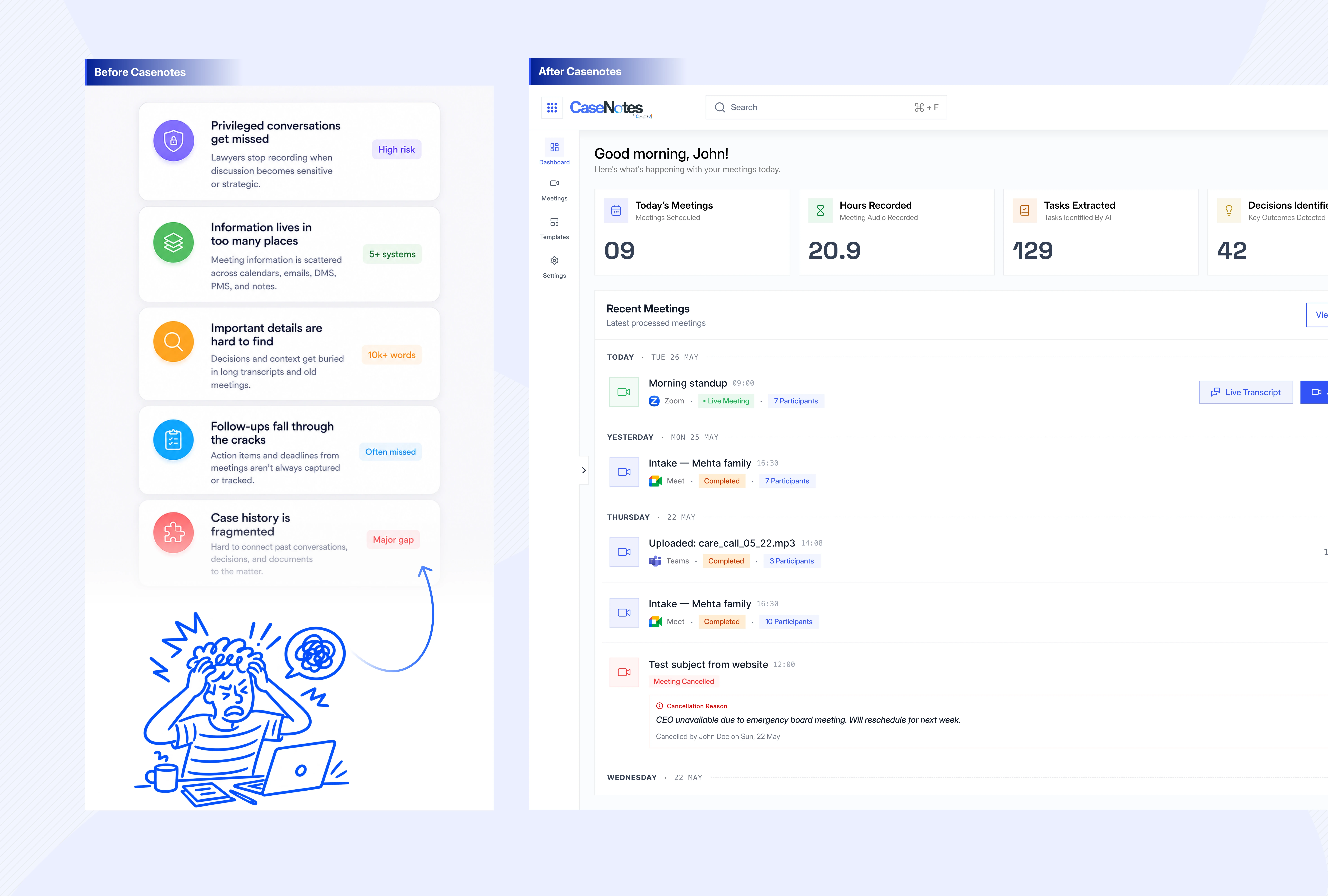 I designed an AI transcription and synthesis workspace that anchors client conversations to litigation discovery files.